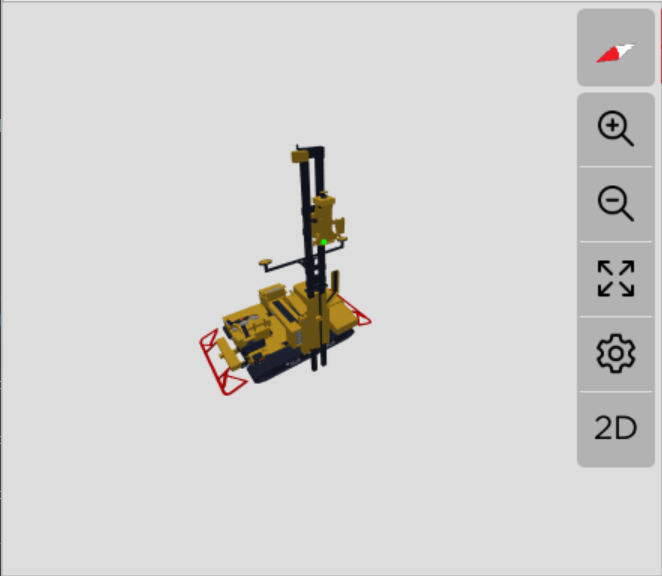
Shows a world-view of the project. 3D View shows the vehicle position in the context of its surroundings. The site-defined project files are used to render a "virtual world-view" of the vehicle and its surroundings. The view can be used in 2D or 3D mode. In 2D mode, Tap the 3D icon to switch to 3D mode. Tap the 2D icon to switch to 2D mode.
The 3D View overlay consists of a North Arrow indicator, and a series of buttons. The button bar can be customized in Admin Tools -> Display Settings -> Plan/Profile/Section View Settings -> Plan Button Bar Settings
The north arrow indicator always points its red end toward the North regardless of viewing angle or machine attitude.
Zooms in toward the machine.
Zooms out away from the machine.
Zooms to fit either the vehicle icon or the entire site on the screen.
Access the settings related to the 3D view.
PDGrade shows the vehicle and all piles enabled in the Pile Selection Tool in this view. Piles appear as rectangular boxes at the top of the designed pile. Unfinished piles appear white. Finished piles appear Green. The currently selected pile appears yellow. To look around the virtual world, drag your finger across the 3D view.