If equipped, Carlson PDGrade can interface to an Orteco HD or Orteco FEX machine to perform point-to-point automation. When enabled, the machine will navigate itself to the selected target pile, and will stop the hammering process at the target height.
Usage
Ensure the Orteco Integration Software is installed.
Enable the orteco integration in the admin tools menu.
Select a target pile. The target view will display an "Auto Ready" message when the machine is within range of the target.
Push start on the Orteco remote.
The machine will track towards the target pile, and adjust the mast to the target angle.
When the target view shows a "Load Pile" message, raise the hammer, and load a pile.
When the pile is loaded, and the target view shows the "Load Pile" message, push the start button on the Orteco remote to begin hammering.
Hammering will continue until the pile is inserted to the target height. The hammer will then automatically lift from the pile when finished.
Grade will select a new target. If the target is within range of the machine, the Target View will show the "Auto Ready" messag, indicating the machine will move to the target when the start button is pressed.
Installation
On command: Make Orteco key part of the UOA request: Click a checkbox for Orteco, and enter both UOA code and Orteco code.
Download Orteco Software Installer 1.0 from CommandHD.
Run the executable.
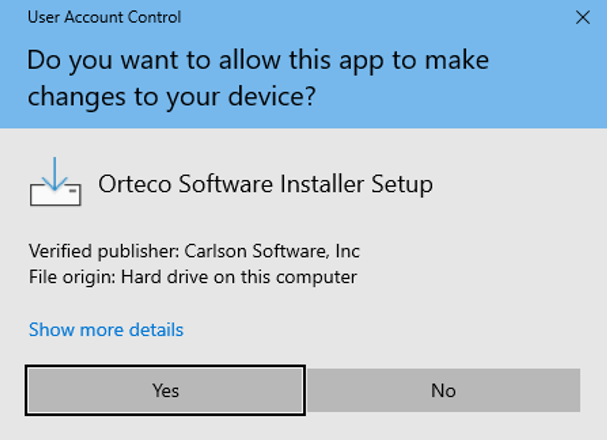
Confirm Yes to allow the app to make changes to your device.
Allow Orteco Installer to Make Changes
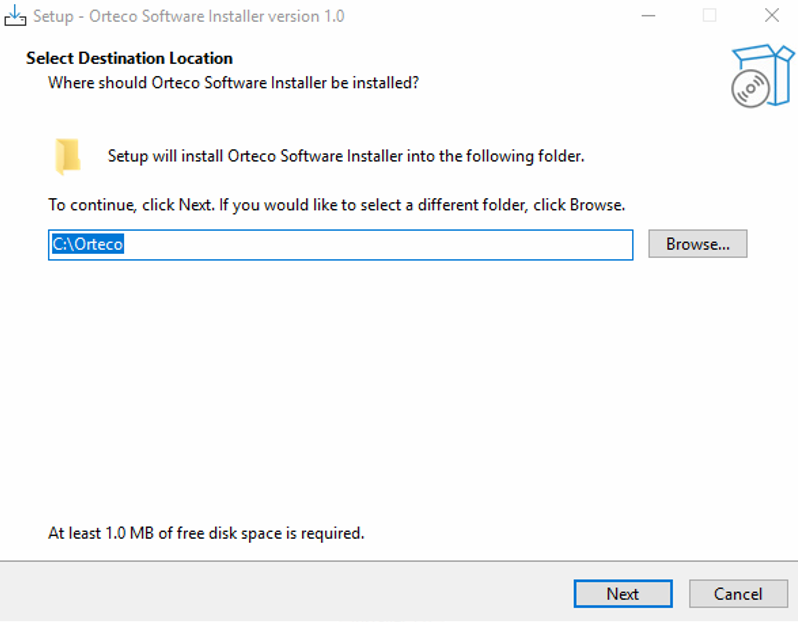
Verify the installation path and press Next
Select Install Path
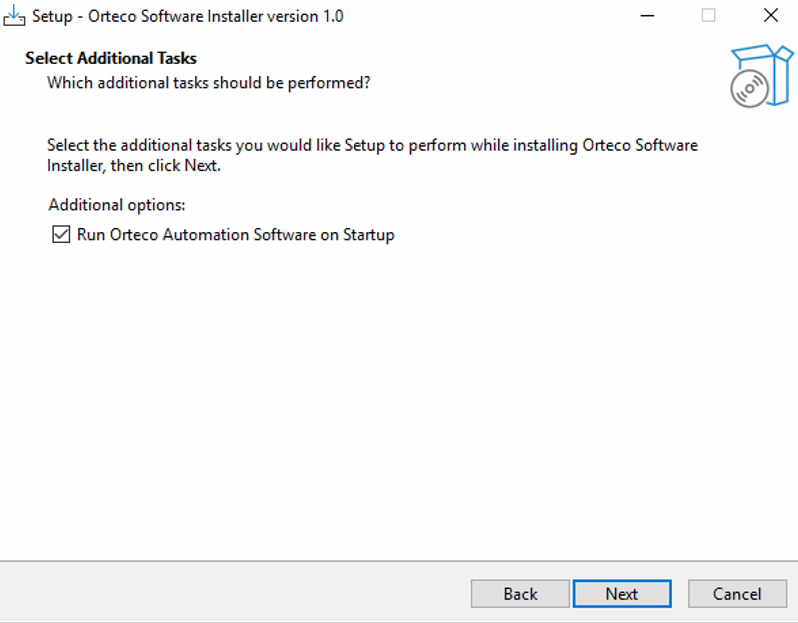
Confirm Run Orteco Automation Software on Startup is checked and press Next.
Run on Startup
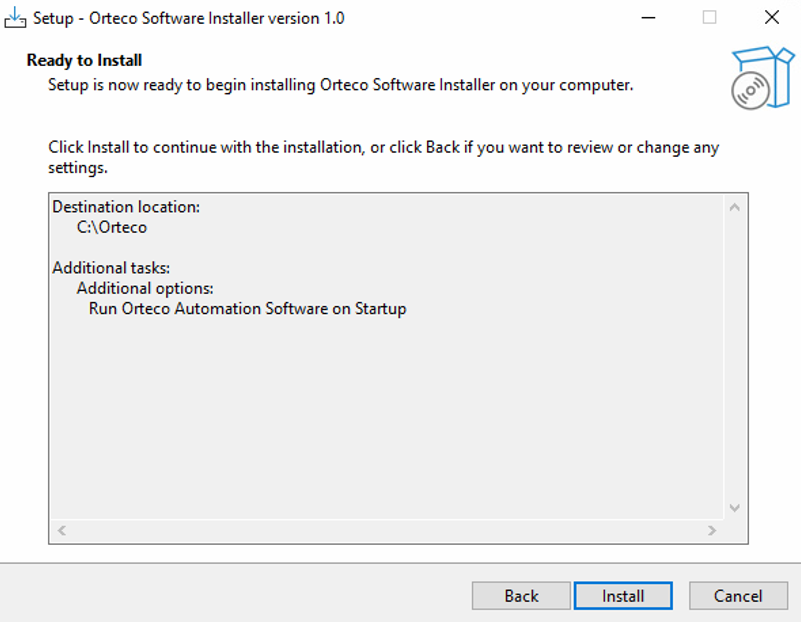
Review the selections made in the process and press Install.
Review all install settings
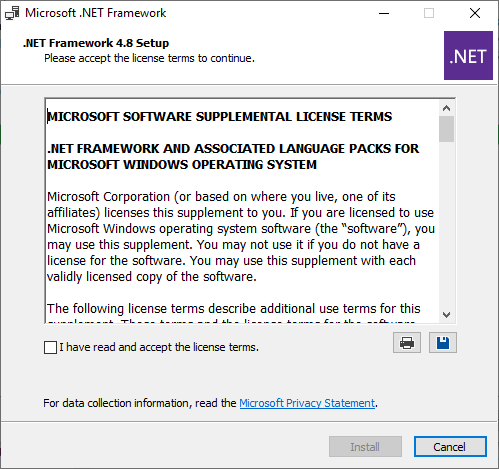
The software will check to see if the correct .NET framework is installed. If not, the following license will appear. Accept the terms and continue
Review and Accept license
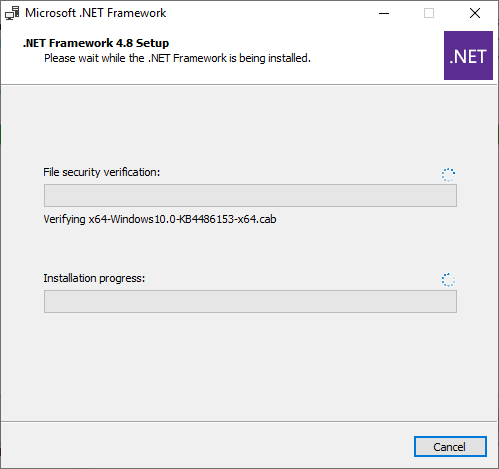
.NET Framework 4.8 will be installed
.NET Installer Progress
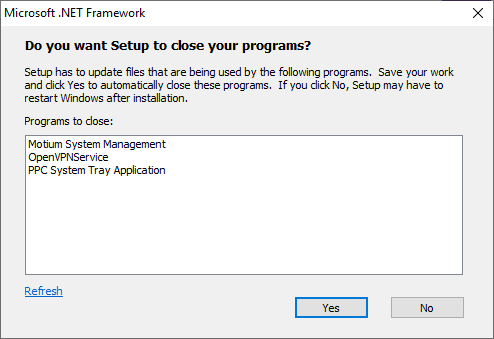
The .NET install might ask some programs to be closed. Press Yes to close the programs
Close Programs
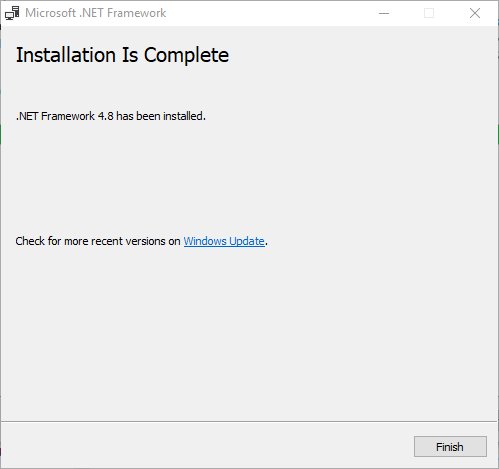
The following pop-up will appear after the installation is complete. Press Finish
Installer Progress
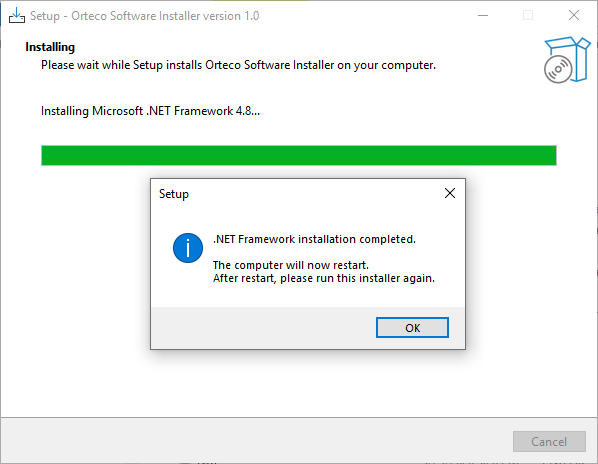
If the .NET framework was installed, the computer will need to be restarted. Press Ok. If this step was completed, re-run the installer and ignore steps 8-12
Restart Computer
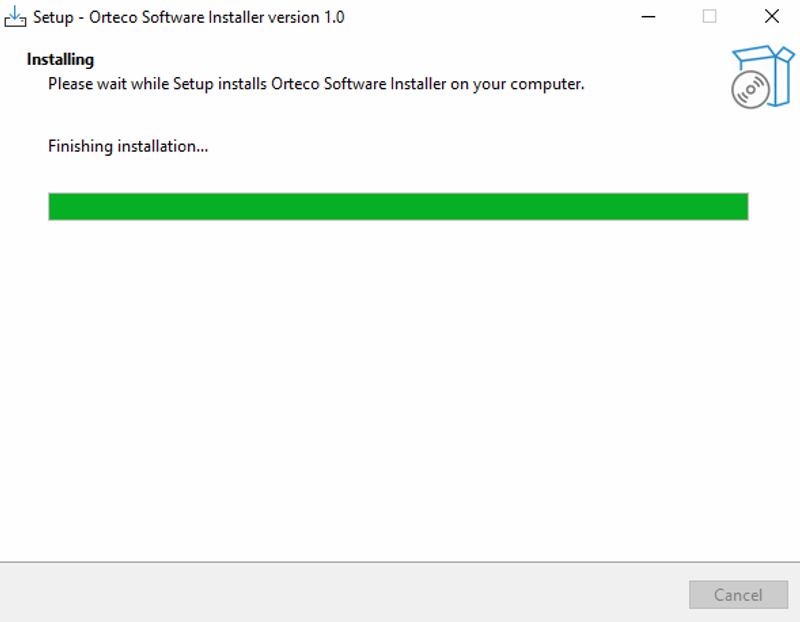
The software will install.
Installer Progress
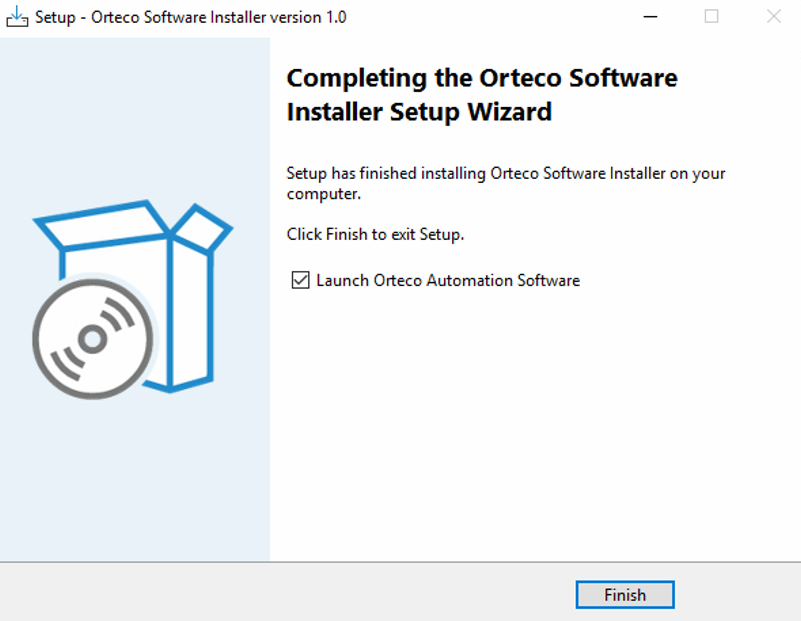
After installing, ensure the Launch Orteco Automation Software checkbox is checked to start the software. Press Finish.
Installer Progress