Pile Report
PD Grade allows users to generate detailed reports on pile driving performance, including:
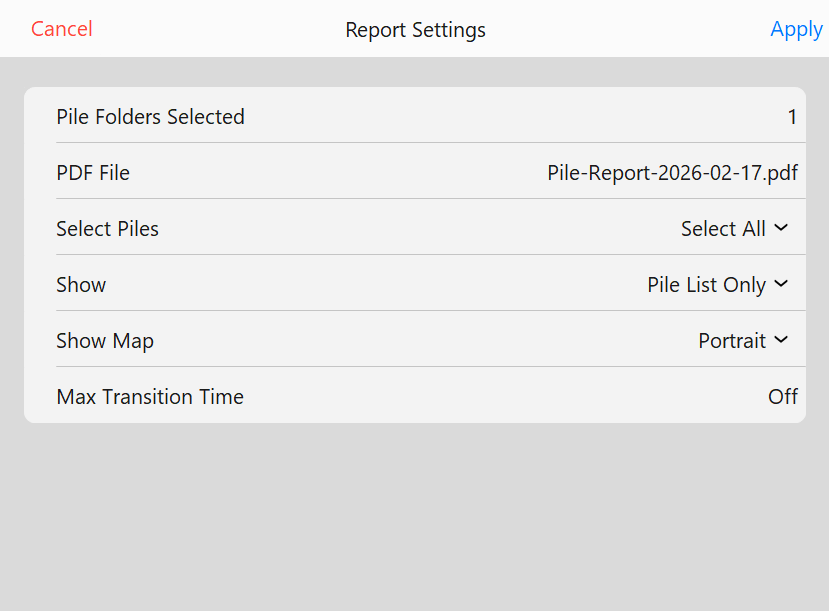 Pile Report
- Penetration rates
- Pile driving times
- Pile placement accuracy (within or out of tolerance)
Report Configuration
- Select Pile Folders: Choose the pile folders to include in the report.
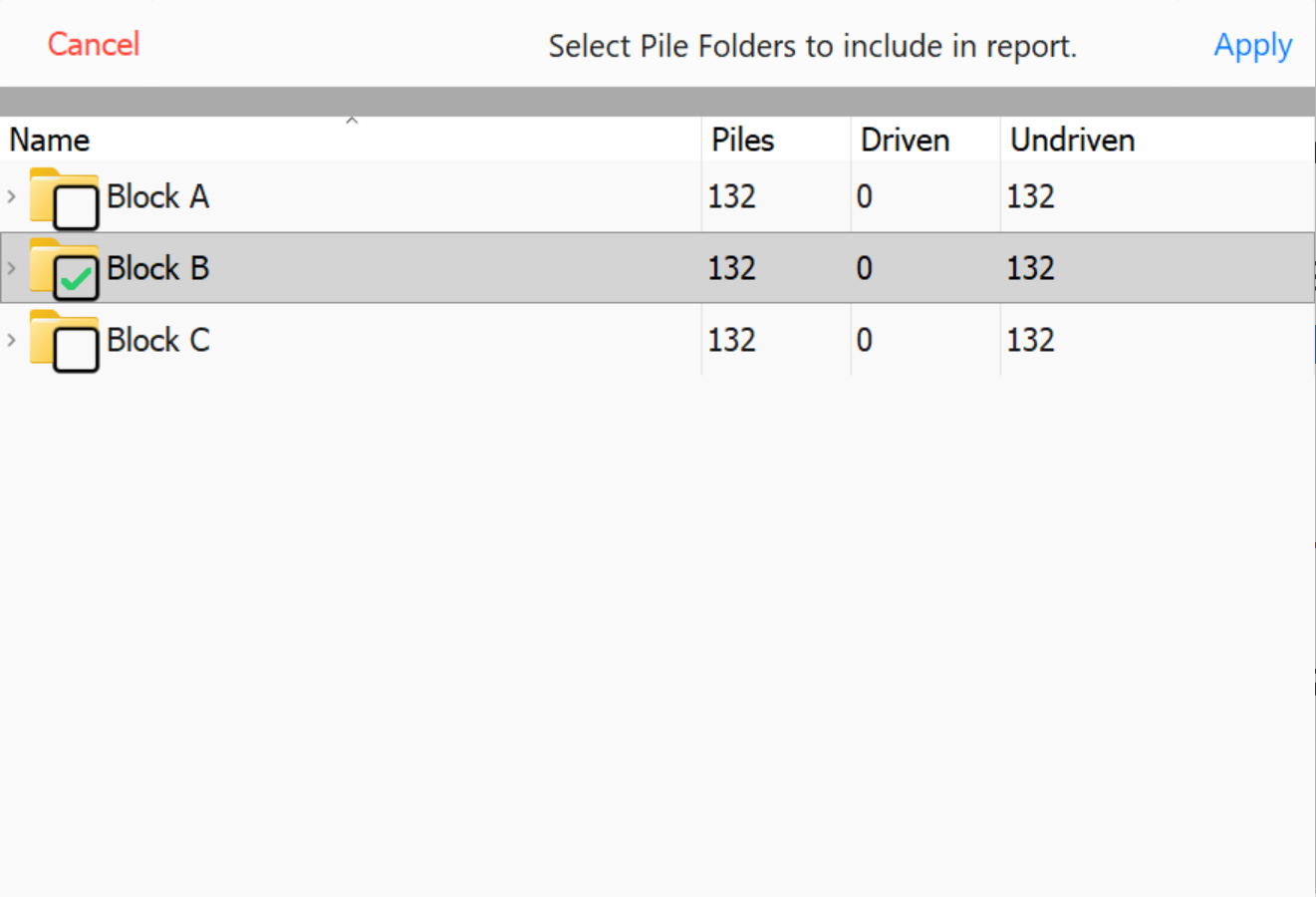 Pile Folders Selected
- Set PDF File Name: Define a name for the generated PDF report.
Note: The default name is Pile-Report-YYYY-MM-DD.PDF.
- Select Piles to Include: Choose one of the following selection methods:
- All: Includes all piles.
- From Date Range: Filters piles by date.
- From List: Manually select piles from a list.
- From Map: Select piles based on their location.
- Undriven Piles: Includes only piles that have not been driven.
- Driven Piles: Includes only piles that have been driven.
- Choose Report Display Format:
- Pile List Only: Displays a detailed list of piles.
- Summary Only: Provides an overview without individual pile details.
- List and Summary: Includes both detailed pile data and a summary.
- Show Map Options:
- Portrait: Generates a vertical-oriented map view.
- Landscape: Generates a horizontal-oriented map view.
- None: No map included in the report.
After selecting a map option, set a zoom level for the display.
- Set Maximum Transition Time:
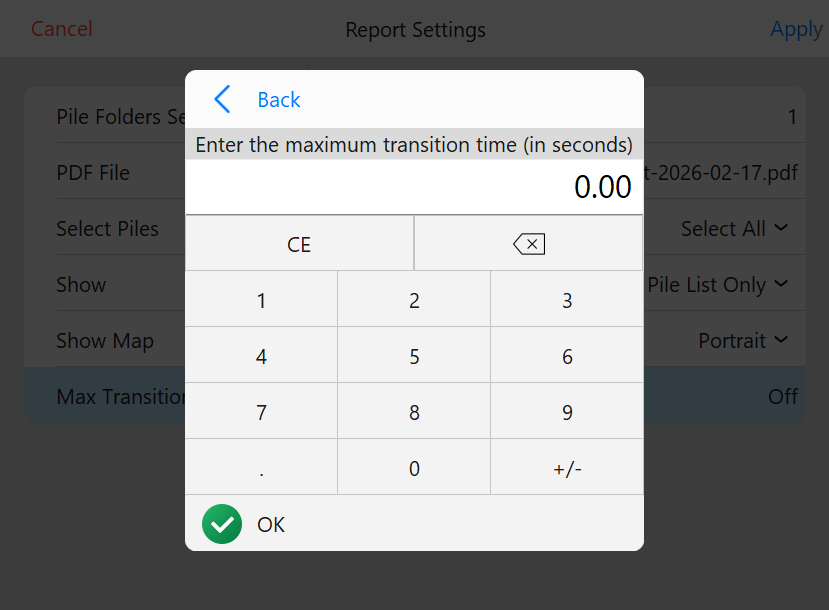 Set Transition Time
- Transition time refers to the time taken to move between piles.
- Setting a maximum transition time ensures that non-working periods (e.g. breaks or lunch, etc) are excluded from calculations. For example:
- If set to 30 minutes, lunch breaks will not count toward transition time.
- If set to 5 minutes, pauses shorter than 5 minutes will be included in the average transition time.
Saving Reports
All reports are stored in:
[Install Drive]/Data/reports