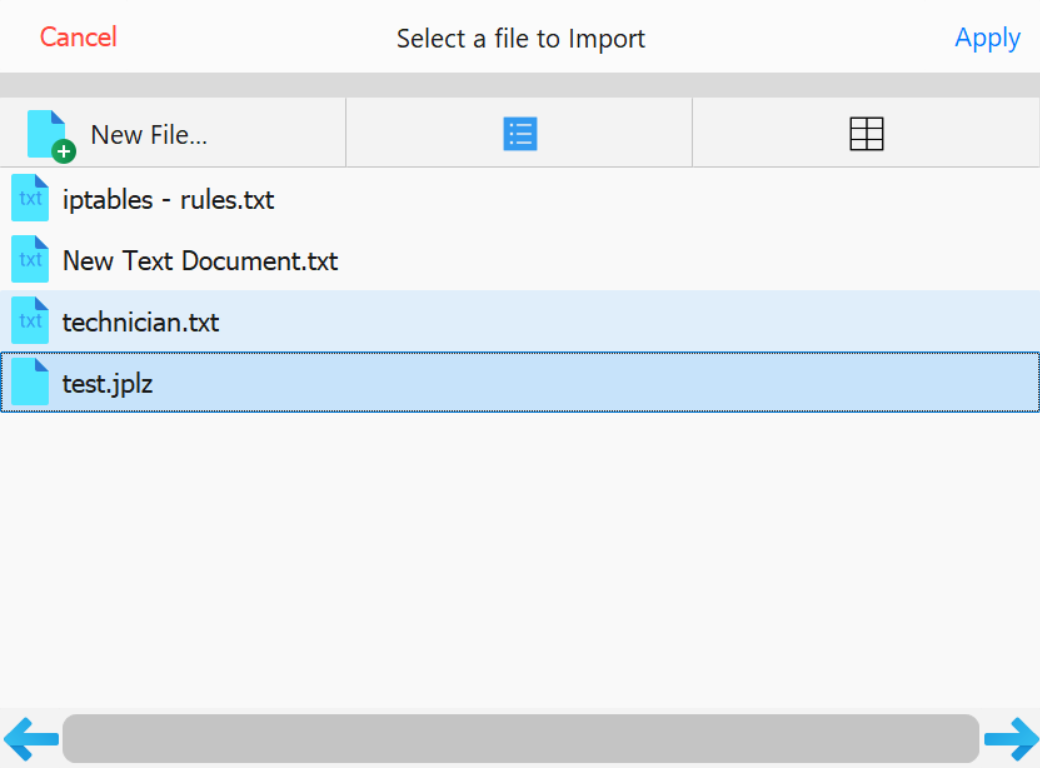
PD Grade can import pile data from the following formats:
JPLZ (Carlson-specific format)
TXT (Text File with Comma-Separated Values)
CSV (Comma-Separated Values)
CSV File Format
A CSV file contains pile data formatted as comma-separated values, typically including:
Point Number
Northing (Y-coordinate)
Easting (X-coordinate)
Top of Pile Elevation
Description
Type (optional)
Length (optional)
Note: CSV files can be opened as text files or imported into spreadsheet applications like Microsoft Excel.
Example Pile CSV in Excel
Importing: Offline - No Command Connection
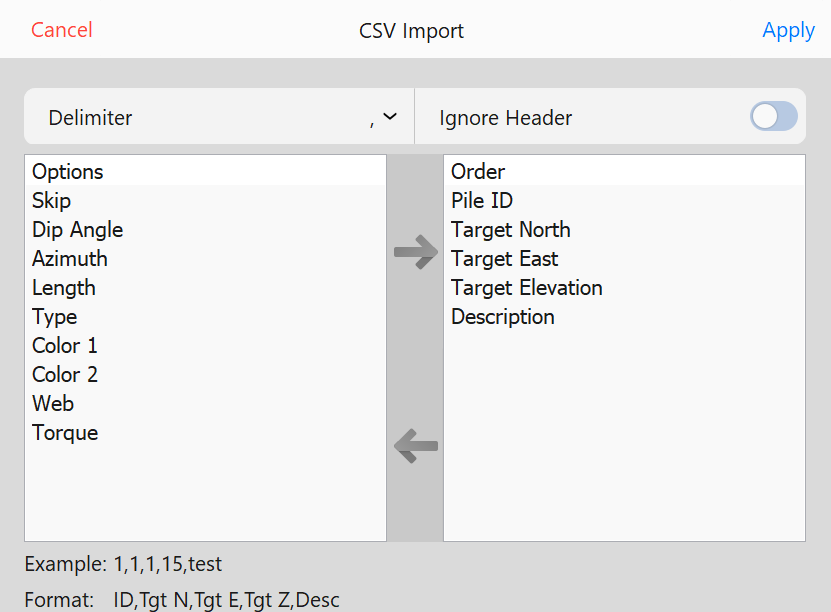
Import CSV - Column (Field) Mapping
Define Column Mapping: Assign CSV columns to the corresponding PD Grade data fields.
Click on a value in the Options Column and use the Right Arrow to add a column to the Order Column.
Click on a value in the Order Column and use the Left Arrow to remove it.
Ignore Headers: Use the Ignore Header option to remove unnecessary lines at the top of the file before import.
Load the File: Press Apply to proceed with the import. If the folder is missing in the CSV, a prompt will appear with the following options:
Don't Import: Cancel the import.
Merge Folder: Update the folder with data from other pile drivers or Carlson Command.
Change Folder: Change the name of the folder to import to.
Assign the Folder:
If no folder is specified, PD Grade will create a new folder based on the file name.
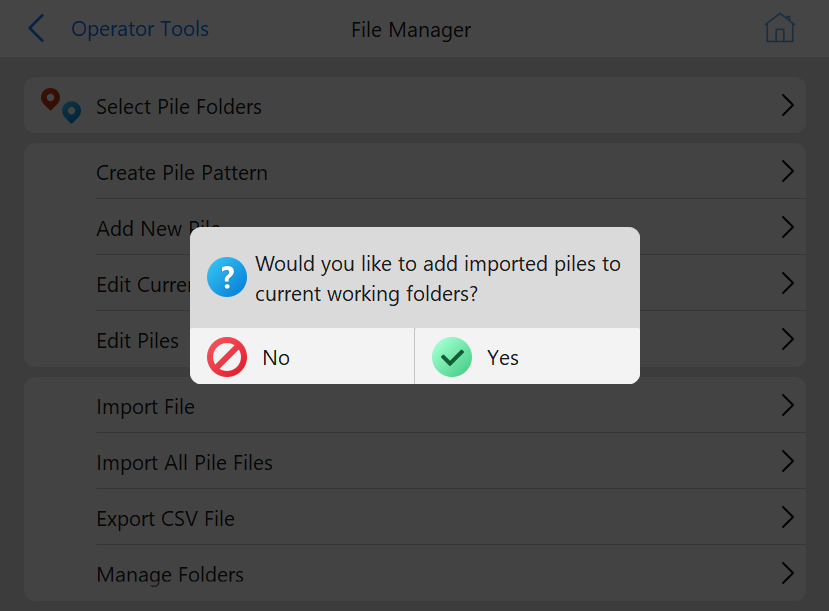
Optionally, add the imported piles to the current working folders from the popup: Add to Current Working Folder Popup
Importing: Online - Command Connection
When connected to Carlson Command, pile patterns and folders automatically sync between Carlson Command and PD Grade. There is no need to export or import any files.
Note: If PD Grade is not connected to the network, manual syncing can be performed using .JPLZ files.
Steps to Import a JPLZ File
Export from Carlson Command:
Follow the PD Command User Guide to import new CSV files into Command.
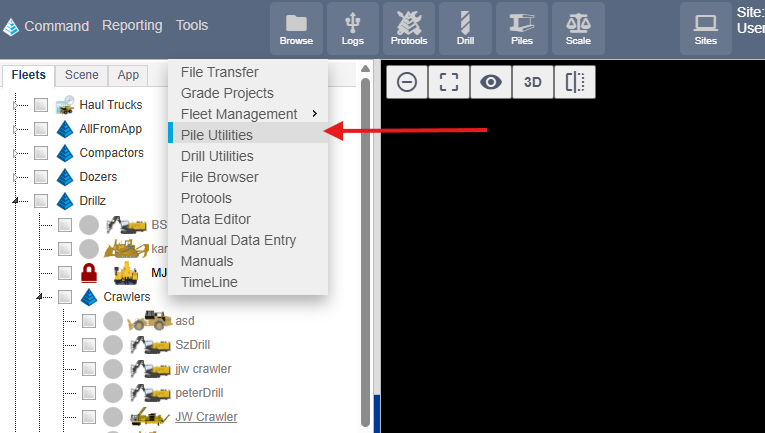
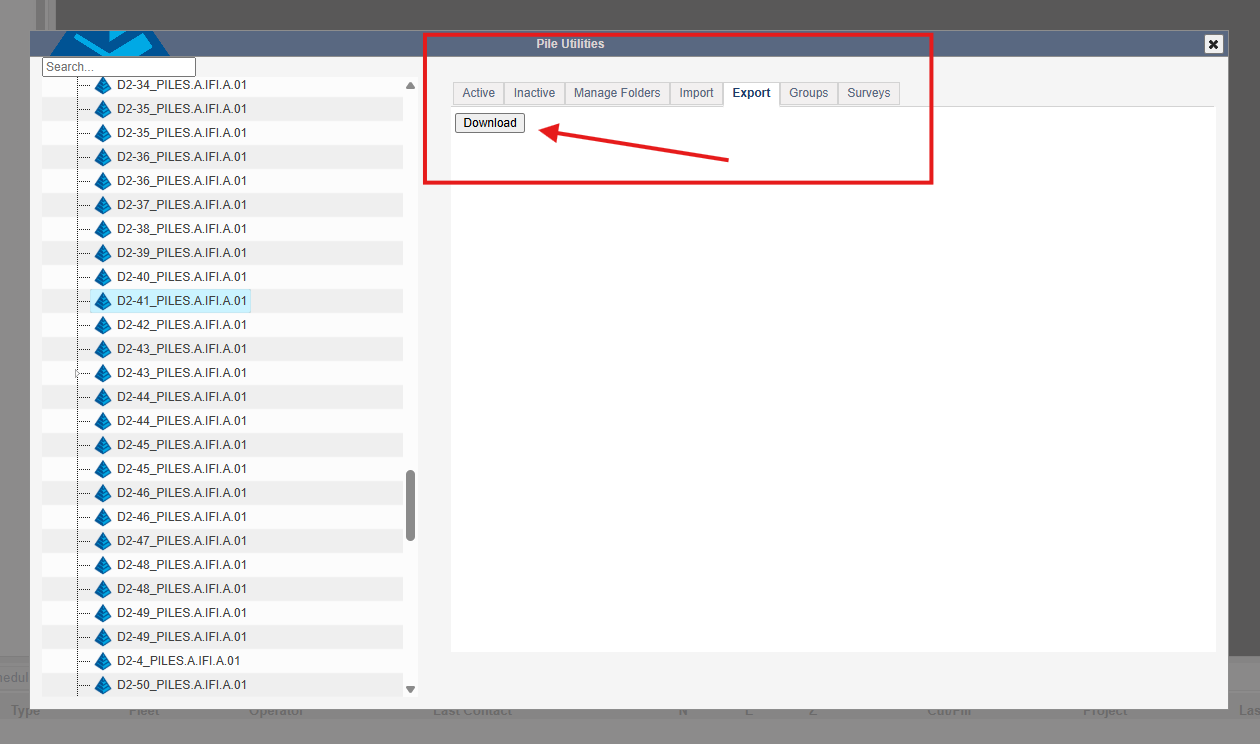
Open Pile Utilities in Command and select the Export tab.
Pile UtilitiesPile Utilities - Export tab
Click Download to save the (for example) piles.jplz file to your Downloads folder.
Transfer to PD Grade:
Copy the piles.jplz file onto a USB drive.
Insert the USB into the PD Grade control box.
Import into PD Grade:
PD Grade will only accept .JPLZ files when connected to a Carlson Command site.
The .JPLZ file contains the entire database structure and ensures data integrity.
Select the piles.jplz file to import the new pile folders.
Select *.JPLZ File