Minimum Requirements
PD Grade requires the following hardware as part of the overall solution.
- Two or more GNSS receivers (or an integrated dual-unit receiver) to provide an accurate heading and position solution
- A control box with a touch display.
All data is brought into the control box and computed to an easy to read graphic output displayed to the operator through the Carlson PD Grade Solution application software.
Obtaining PD Grade
PD Grade is installed using a USB thumb drive to a ruggedized field computer. Additionally, PD Grade can be installed to an office PC.
Current versions of Grade products can be found on Command HD (help desk) at:
https://hd.carlsoncommand.com/secure/downloads.cfm
Contact mcsupport@carlsonsw.com to register for a Command HD account. An account on Command HD grants access to:
- Product Downloads
- Release announcements
- HD Ticketing for support, issue reporting, and feature requests
- Product Registration
- Multi Command site management
- Dealer tools
Installing
Installation is simple and should take no more than 5 minutes to complete.
- End-User License Agreement: Read and agree to the End User License Agreement. Click "I Agree" to continue.
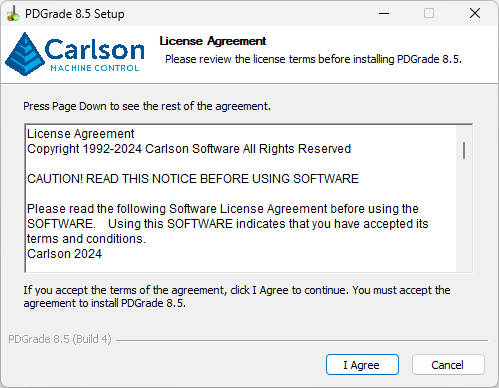
End User License Agreement - Terms and Conditions - Choose Components: Choose which optional components to install with Carlson Grade.
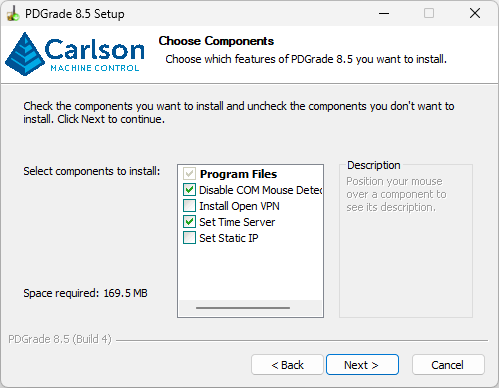
Optional Installation Components - Disable COM Mouse Detection: Prevent Windows from searching for mouse on the COM ports. This can interfere with Carlson Grade while initializing ports used with hardware.
- Install OpenVPN: Installs OpenVPN Client. OVPN is required for communication with Carlson Command.
Note: Do not install for stand alone setups.
- Install Location: Carlson suggests installing the program into the default directory. PD Grade is installed directly into the root of the hard drive, because PD Grade runs at the system level.
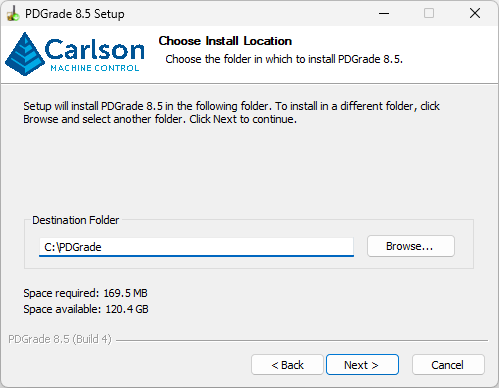
Installation Location - Data Location: Choose the location for the data files.
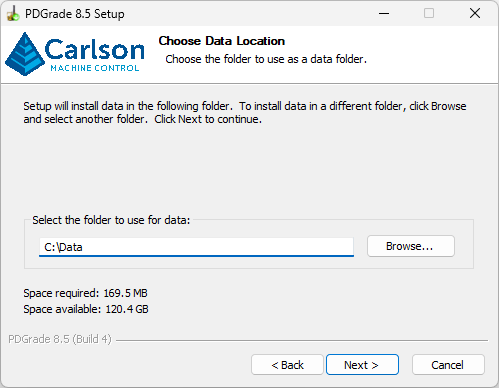
Data Files Location Note: Carlson recommends utilizing the default location. However, it can be changed to accommodate a data drive on the control box.
- Start Menu Folder: When PD Grade installs, it creates a folder in the Windows Start menu.
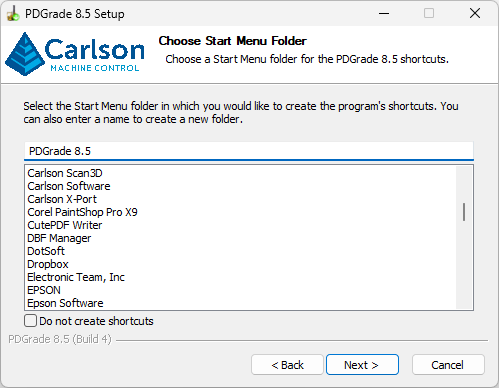
Windows Program Group Name Note:The name of the Start menu folder can be changed, as desired.
- Installation Options: PD Grade can be installed with several options.
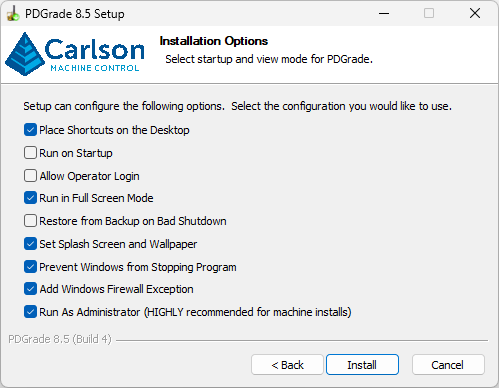
Installation Options - Place shortcuts on the desktop: Place a Grade shortcut on the Windows desktop for easy access.

Optional Installed Shortcut Icon - Run on startup: Configure a scheduled task to start Grade on user login of Windows.
- Allow operator login: Configure Grade to start at the operator login screen. Operator lists can be configured in Carlson Command and a default operator is created on install.
Note: The default operator is called "rover" and the Operator ID is 24680.
- Run in full-screen mode: Run Grade in full-screen mode without a border. This maximizes screen space and allows for a seamless operator experience.
- Restore from Backup on Bad Shutdown: Prompts the operator with "Yes" or "No" option for restoring settings from a backup file in the event of an unexpected shutdown:
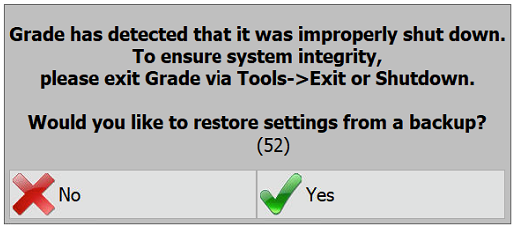
Optional Restore from Backup - Set Splash Screen and Wallpaper: Set the Windows desktop to the Carlson Grade wallpaper.
- Prevent Windows from stopping program: Prevent Windows from putting Grade into "Not responding" mode. This is important because Grade needs to run without interruption while accessing system level resources.
- Add Windows Firewall Exception: Create a rule in the Firewall that allows Grade to communicate with Carlson Command.
- Run as Administrator: Executes Grade as an elevated user with access to system functions. This is required for Grade to have the ability to set the system clock from the GPS.
- Place shortcuts on the desktop: Place a Grade shortcut on the Windows desktop for easy access.
- While PD Grade installs, a progress bar will indicate the active status and this process may take a few minutes depending on the speed of the computer.
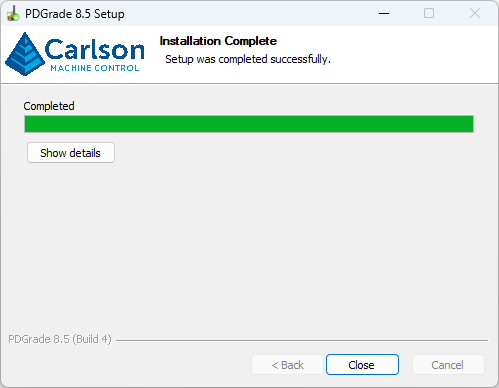
Installation Progress
Once installed, launch the product through the shortcut icon or through the Windows Program Folder group.
Product Registration
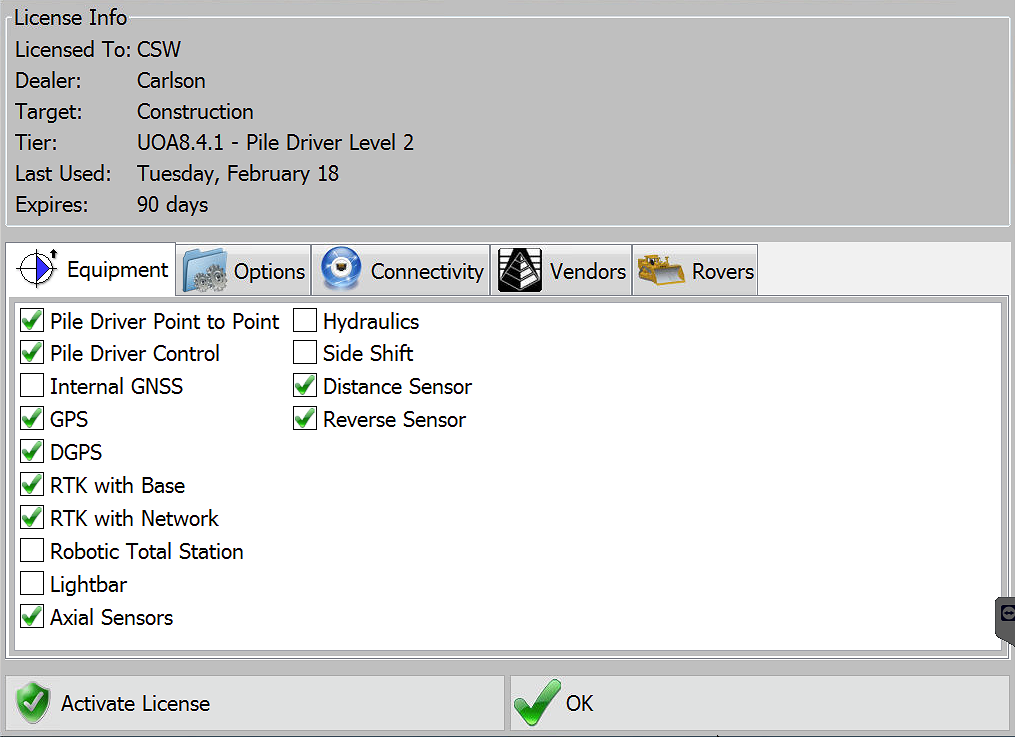
PD Grade is licensed using an Upgrade Option Authorization (UOA) file (e.g.cg.uoa). This file licenses the software for regular use as well as enabling additional features. If no prior UOA of PD Grade is detected (see Software Activation License), the software will prompt for one to activate the install in the initial setup of the software.
PD Grade will run on a temporary UOA file for 30 days before disabling communication through the serial ports. To register the product, press "About PD Grade." If the software is being run as a demo on an office computer then this step is not necessary.
Once installed, go to Tools → About → Support → Product License → Activate License and record the 20 Digit code provided there. Please remember that this is not the Serial Number for the license, just the activation code. The Serial Number can be found in the invoice from the purchase. If you purchased the software from a licensed Carlson dealer, please contact them to obtain the serial number. Once you have the 20 digit code and the serial number go to:
https://hd.carlsoncommand.com/uoa_request/uoa_request_form.cfm
There you can complete the form to obtain a license. This license will enable certain features of PD Grade depending on your application and purchase. At any time, you may purchase new features and you will then receive a new UOA. Most licenses will be returned within a few minutes, but please allow up to 24 hours to obtain the UOA file. Once you have downloaded the file, press "Load License" on the 20 digit code screen. From there you can navigate to a location on the Local drive of the control box, or to a USB or other external drive and locate the "cg.uoa" file. Select the file and press "Load." This will activate your license of PD Grade Software.
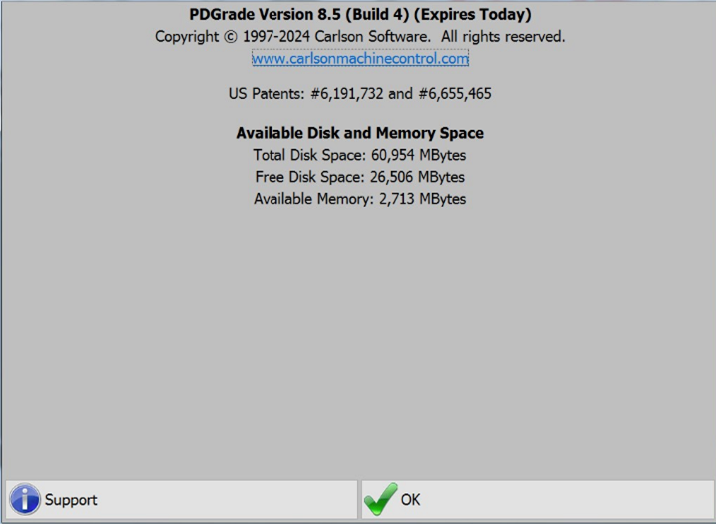
Tapping the Support button provides information about how to contact Carlson Software in the event your Carlson Machine Control Dealer is not available and also provides the means to activate a UOA.
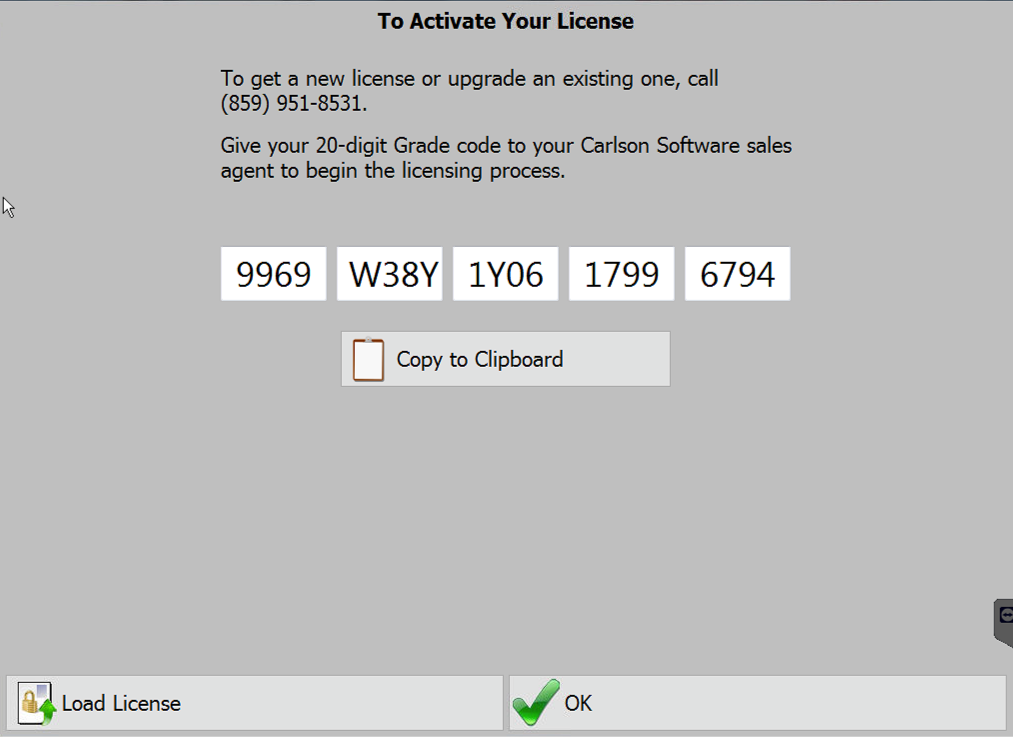
Once you obtain a UOA file, place that file on a USB drive or transfer it to a location on the control box you will remember.
Note: Do not rename or otherwise alter the cg.uoa file. This will invalidate the file. To store multiple files on one drive, separate them with folders.
Press "Load License" from the previous screen and select the "Drive" that contains the UOA needed to license your product. Next, press OK and PD Grade will be activated.
Note: The Product support options you have purchased will have the boxes checked after the UOA is loaded as shown.