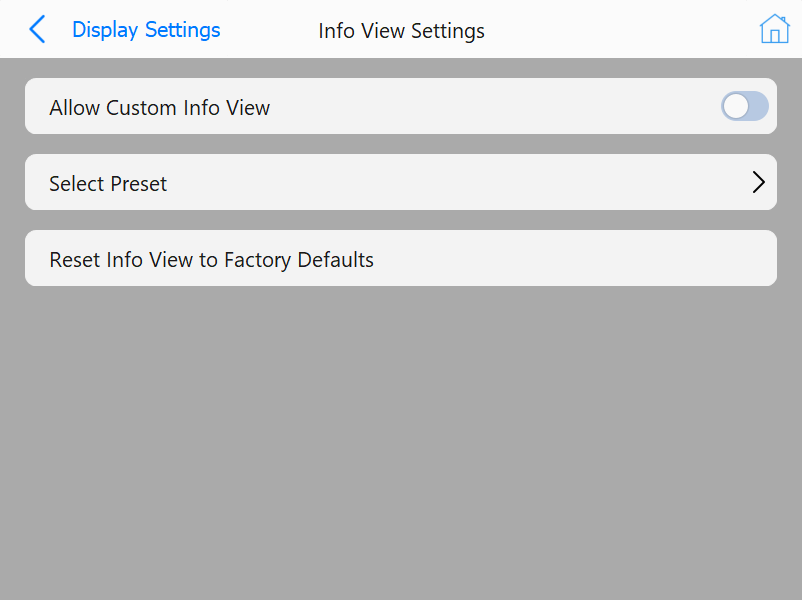
This page opens up options for info view. A toggle at the top is available to switch between using preset Info View panels or customizing each panel individually. Disabling/Enabling this option will switch the available buttons and will switch the behavior when clicking an Info View panel. The Reset Info View to Factory Defaults button can be used to reset the view to the factory defaults.
If the option to customize Info View is disabled, the only button available will be to select a preset. Presets can be defined in a configuration file. Clicking the "Select Preset" button will open the page seen below
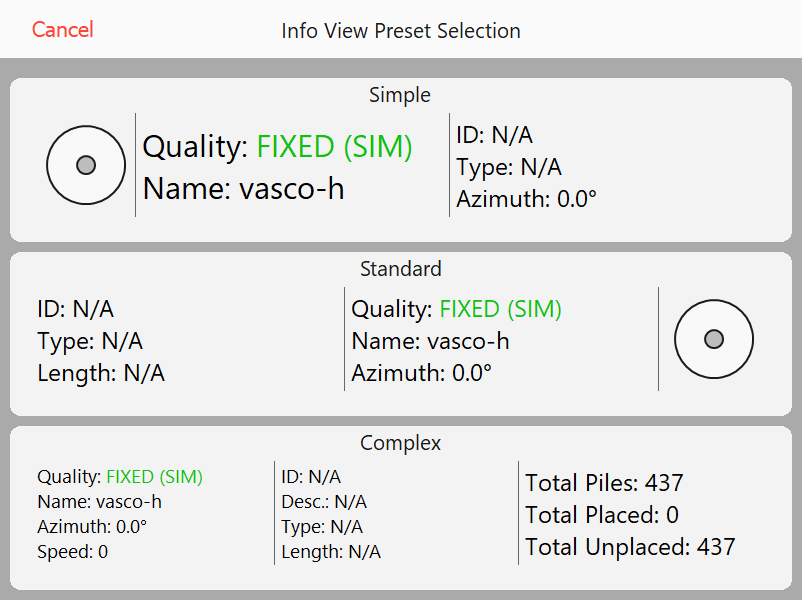
There are three presets to choose from: Simple, Standard, and Complex. Each option displays more information than the former.
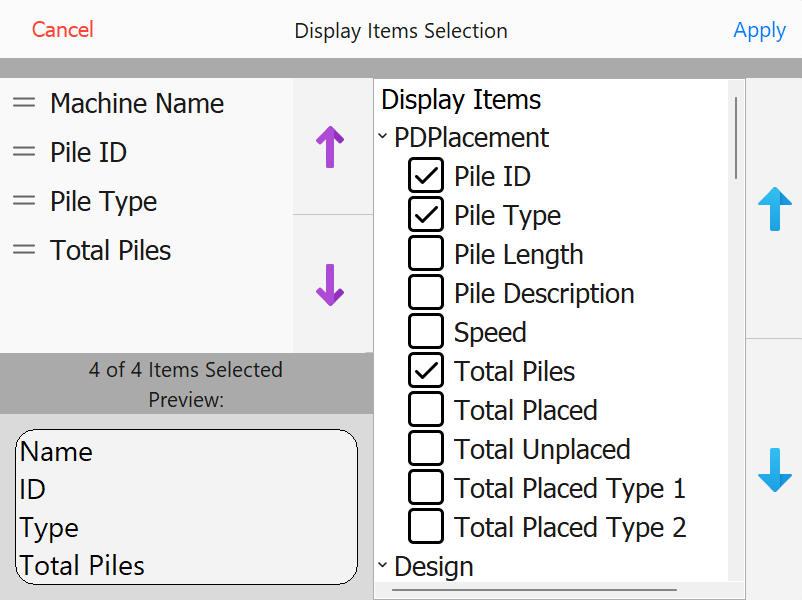
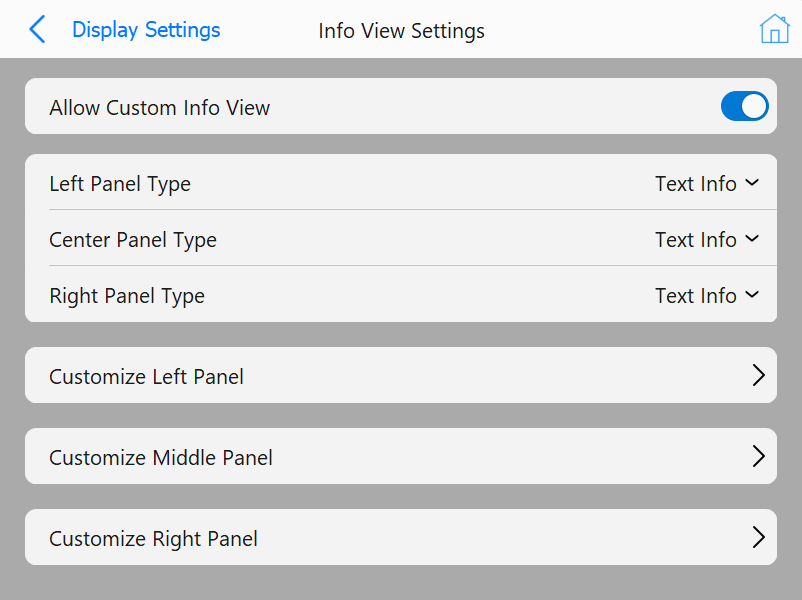
If the option to customize Info View is enabled, buttons will show to customize each of the panels. Clicking one of these buttons will open the page seen below to customize what metrics are shown in Info View. If the custom option is enabled, it will also allow the operator to hold-click the panel to switch between a panel showing a bubble level or cut/fill info.