Fleet Explorer
The Fleet Explorer panel gives a quick overview of the fleets and their current status. To the left of the name of each rover is an icon that indicates the current state of the machine.
 A Gray icon indicates that the machine is not communicating with the office.
 A Green icon indicates that the machine is communicating with the office, and is not in any elevated state.
 Yellow indicates that the machine was communicating but has recently stopped. If a connection is not established within 15 seconds, the icon will turn red.
 Alert indicates that the machine has an operational error. Check the alerts tab below to find out what alert code was signaled from the machine.
 This icon indicates that the machine has been placed in a down state. Down codes are covered under Fleet Management>Manage Operational Codes
 The clock icon means that the data coming in is older than server time. This can happen if the machine was offline and is now catching up, or if the clock on the machine is behind the server clock.
 The red clock indicates that the data streaming in is ahead of the server time. This means the clock in the machine is wrong and should be fixed immediately. This usually occurs when the system clock in the machine gets a bad date from the GPS.
 The Green Lock indicates 2 machines are streaming in as the same machine name. One machine’s hardware ID matches the database for this machine and the other does not.
 The Red Lock means a machine with the wrong hardware ID is attempting to stream in but is locked out. A machine with the correct hardware ID is not currently streaming.
Note: Check the Alerts tab to see the locked out machine IP address and hardware ID .
Machine Right-click/Context Menu
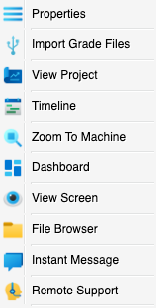
Click to select an individual rover or group of rovers. Click on the machine or fleet to highlight it. While highlighted the selection will limit what is seen in the Map View, and the details panel, as well as any reporting.
Right click the rover to bring up a context menu.
- Properties - Open the properties menu for this machine.
- Import Grade Files - Allows the manual import of log files from the machines (see below).
- View Project - Open the currently running grade project in Command project viewer
- Timeline - Open a timeline for this machine in the bottom panel.
- Zoom to Machine - centers the map view around the rover.
- Dashboard - Open the dashboard for this machine in the bottom panel.
- View Screen - Opens Carlson VNC for remote viewing the screen of the machine.
- File Browser - View and import files from the machine’s drive.
- Instant Message - Send messages to the Machine to communicate with the operator in real time.