Configuration
CSV
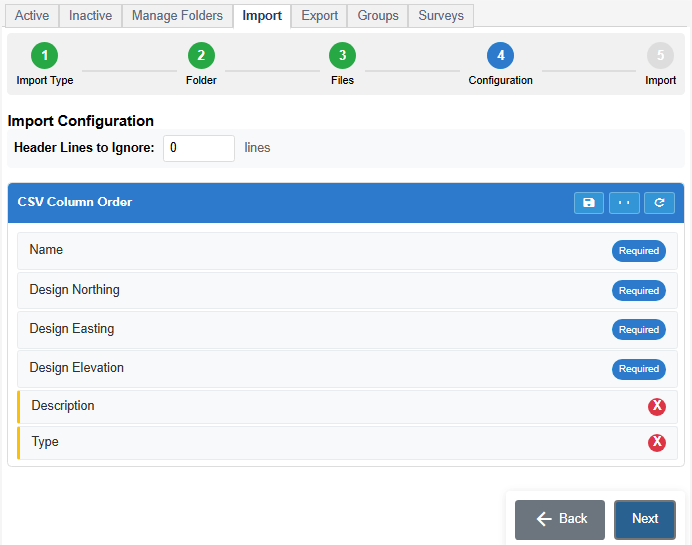
Ignore Header- The number of header lines in the .csv file to be imported. Typically zero for no header or 1 for the header line. This prevents the header from being imported as an invalid pile design.
CSV is a non-standard format and the columns represent anything. Therefore, the order of the CSV must be established before the design can be imported. Drag and drop the fields to match the order of the CSV. The fields are:
Name (required) - The primary identifier of the pile.
Design Northing (required) - The Y coordinate of the pile.
Design Easting (required) - The X coordinate of the pile.
Design Elevation (required) - The Z coordinate of the top of pile.
Description - Any additional information or identification for the pile.
Type - Color or other grouping of piles. Used to turn types on/off on the PD Grade or Placement screen.
Design Dip (degrees) - The angle at which the pile will be driven.
Design Azimuth (degrees) - Direction of the dip angle (direction of the row with vertical piles.)
Design Length - The length of the pile to drive. Used to set offsets for Pile Placement Machines.
Controls for CSV import are buttons at the right side of the CSV Order header.

- Save Order - This is a site wide setting. It is available only to Master users.
- Placeholder - Adds a field to ignore in the file.
- Refresh Order - Resets the order and fields to defaults.

Remove a field by clicking the red remove icon at the end of applicable fields.
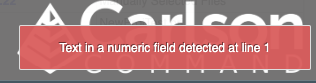
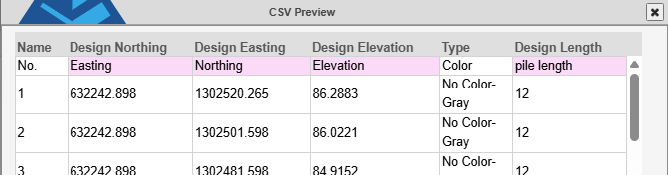
Press Import. A preview of the import will open. If any field values do not match the correct data type (numeric, etc) There will be an error message.
Example - Forgot to ignore header line:
Example - good preview:
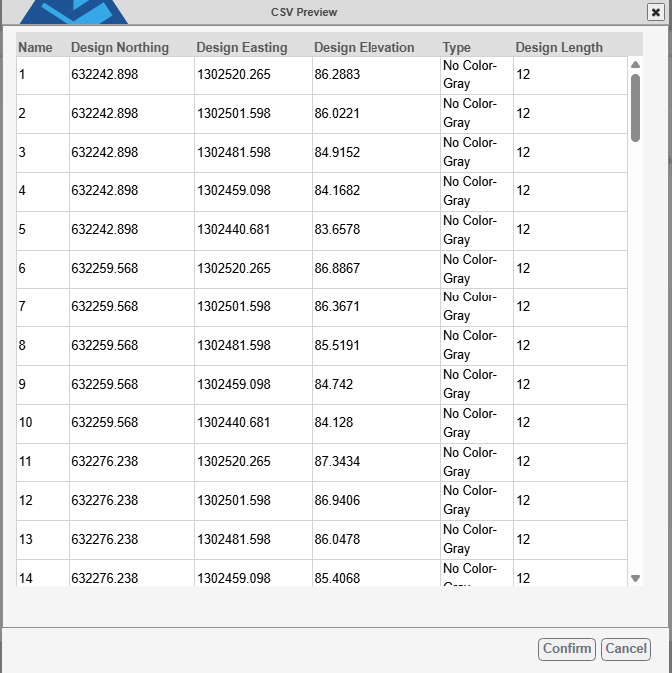
Press Confirm and the new folder will be added to the database of piles.
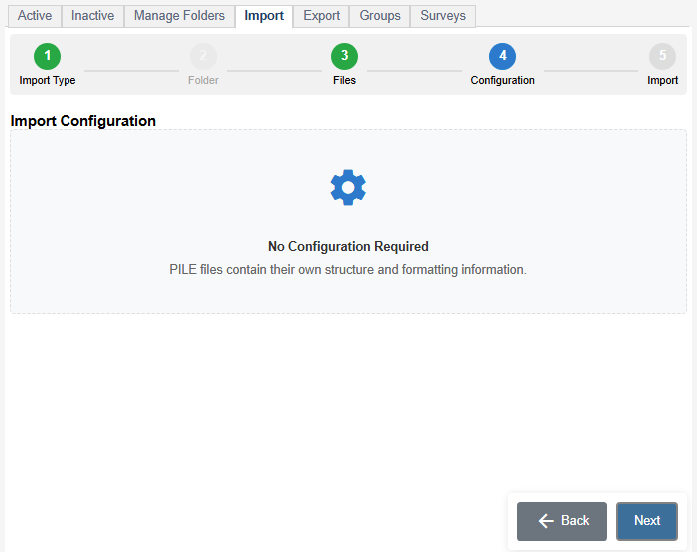
PILE
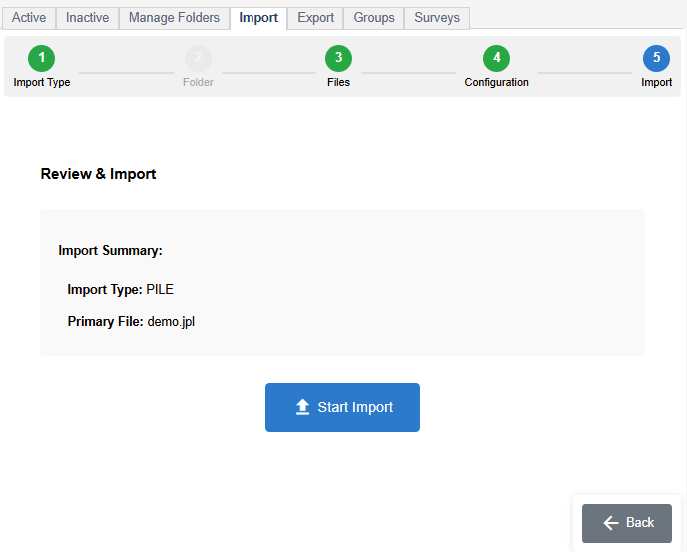
Importing a .jpl or .jplz file is simple because the definitions of the data are present in the file. The wizard will skip the folder selection.
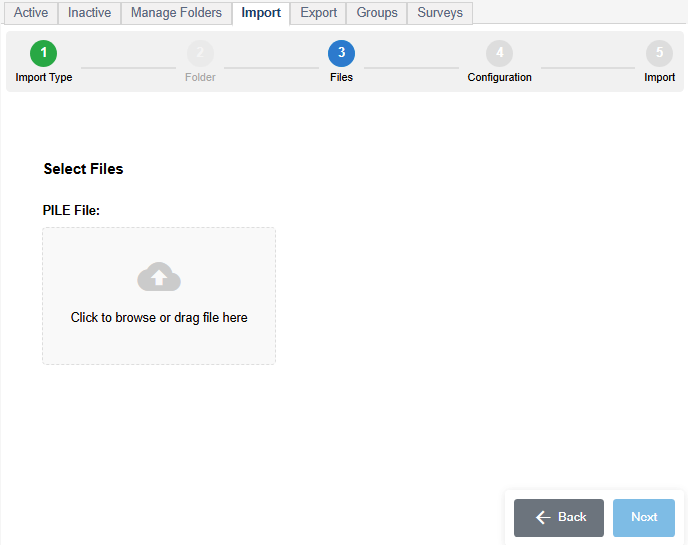
Select the file from the PC.