Info View
The Info View appears as a rectangular area at the top of the screen on Grade's Main Screen. The InfoView displays useful information about the status of the system and machine in three separate areas. Each area (or panel) can have up to four metrics enabled, and the order of appearance within each panel can be changed.
There are two ways to change what is shown in this view: the operator can select one of three pre-set configurations from a list, or a fully custom configuration can be created from the InfoView Settings page
Selecting a preset:
- Tap anywhere within the InfoView, the screen will show 3 different versions of the InfoView
- Tap the version of the InfoView that best suits your needs
Creating a custom InfoView
- Navigate to
AdminTools -> Settings -> Display Settings -> Info View Settings - Ensure
Allow Custom Info Viewis enabled - Tap the
Customizebutton that corresponds to the panel you wish to customize.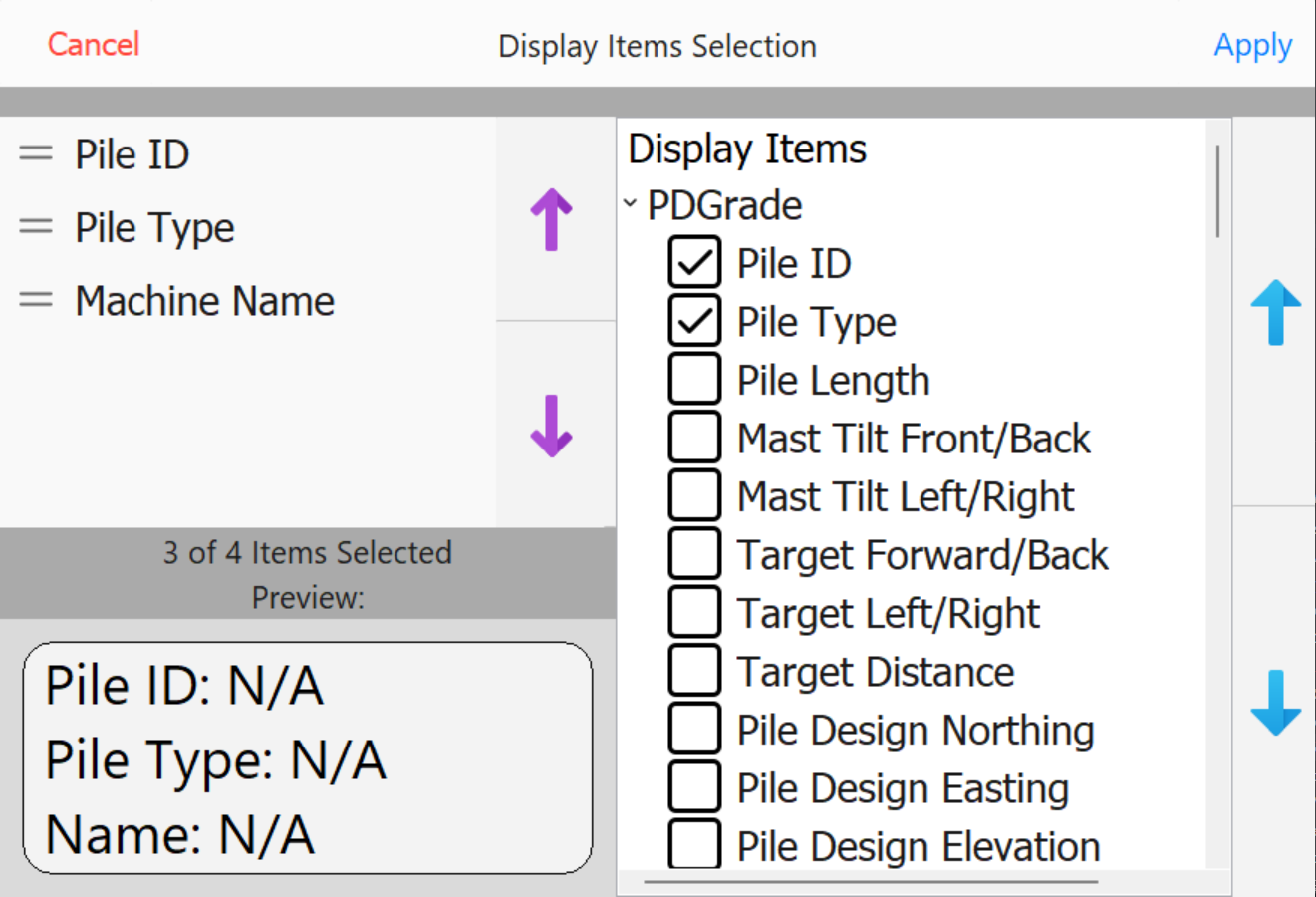
Info View Customization -
On this page
- List of currently shown items (in order of appearance)
- Current selected item
- Move selected item up in the list
- Move selected item down in the list
- List of items that can be shown
- Scroll Buttons
- Preview Panel
Adding/Removing items to show
- Scroll the right-hand list such that the desired item is visible
- tap the checkbox to the left of the item to enable/disable it
- Use the preview panel to verify the configuration
Note: Up to four(4) items can populate a panel at any given time. The number of items selected is shown above the preview.
Changing the display order of shown elements
- Select an item in the list on the left-hand side of the screen
- Use the arrow keys to move that item up or down in the list
- Verify the configuration using the preview panel
Supported Info View items
All Products
PDGrade