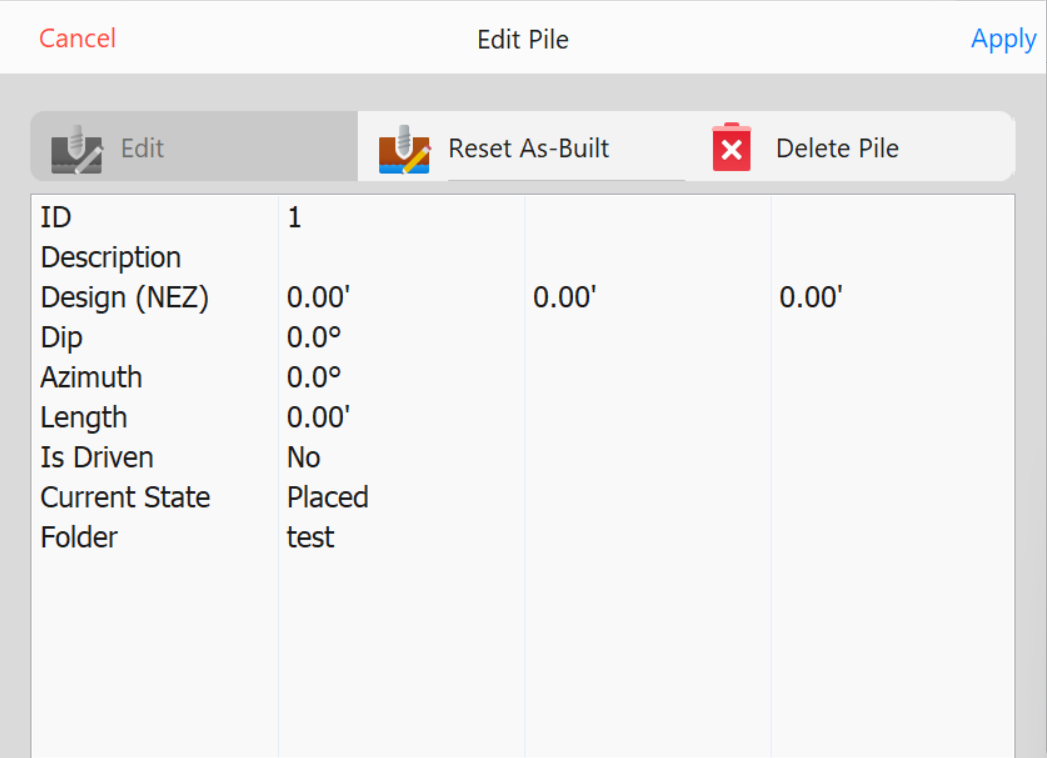
This option is available only if a pile is selected.
Edit Pile
Note: The data options are the same as those specified in the Add New Pile section.
Editing Piles
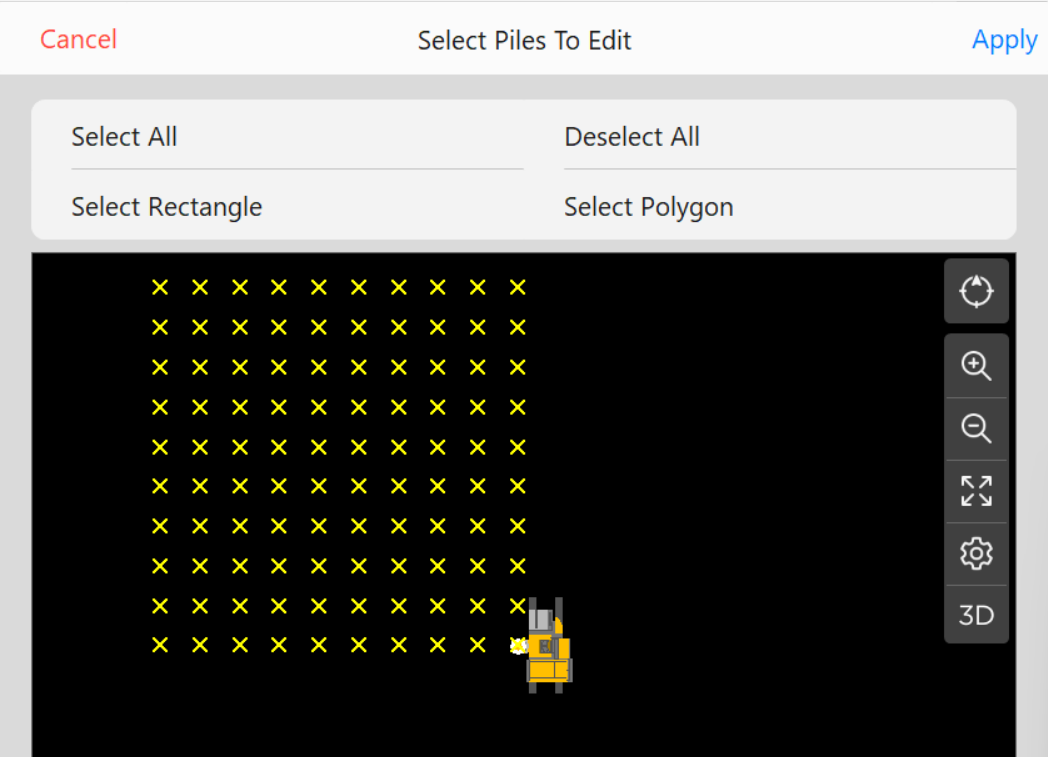
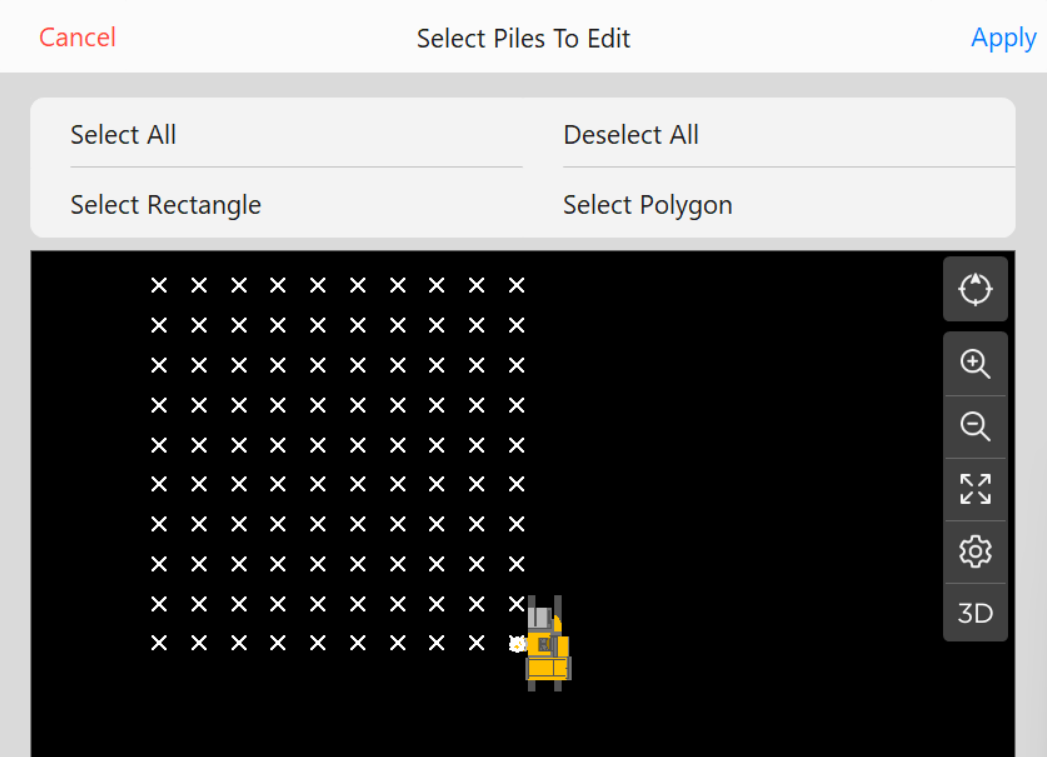
Select a group of piles from the currently loaded set to edit.
Select All: Selects all piles on screen.
Select All
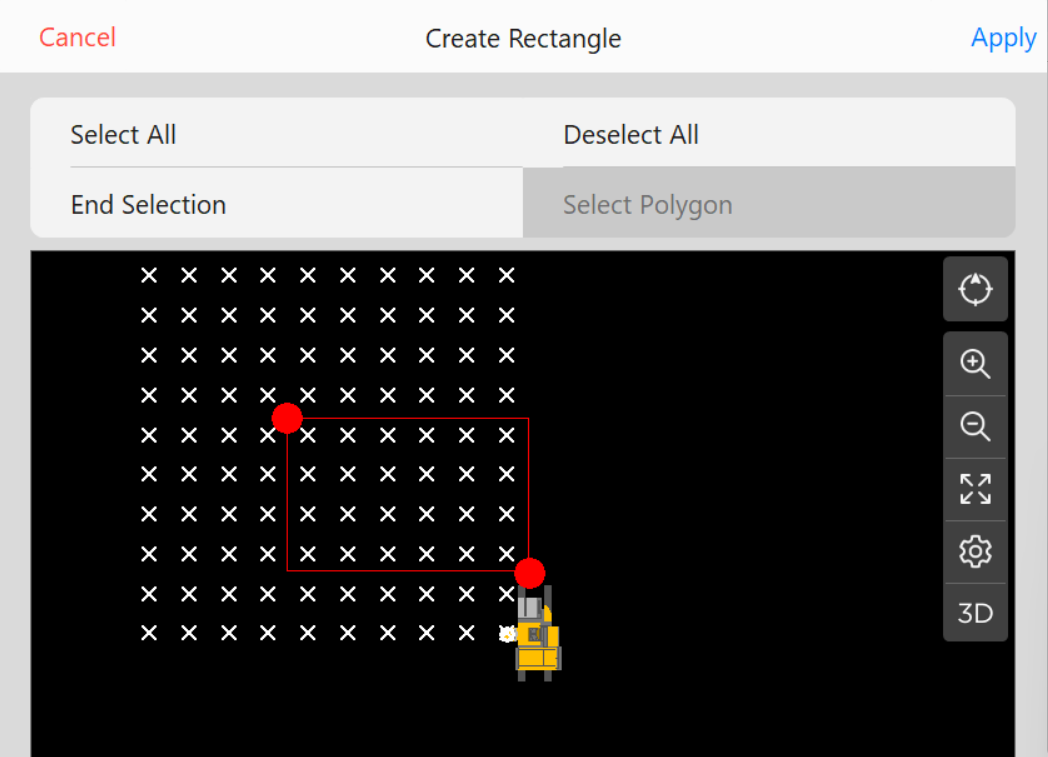
Select Rectangle: Pick two points on screen to create a selection rectangle. Press End Selection to select the piles. The selected piles are then highlighted in yellow.
Select Rectangle (Window)
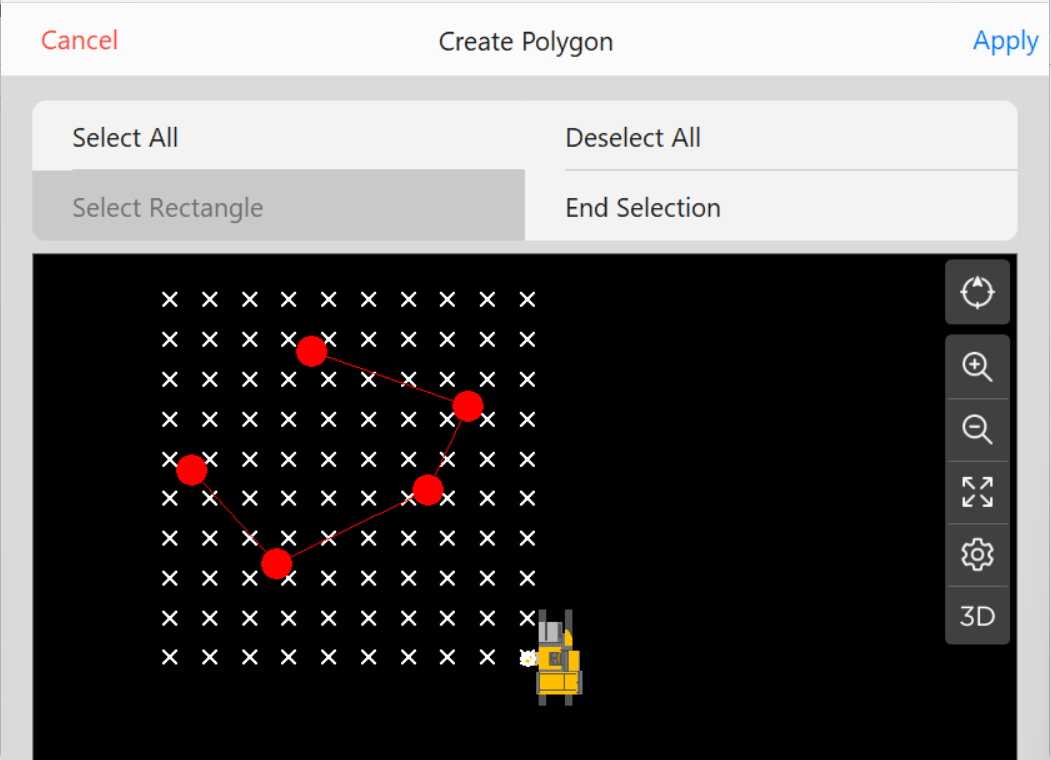
Select Polygon: Pick multiple points on screen to create a selection polygon. Press End Selection to close the polygon and select the piles. The selected piles are then highlighted in yellow.
Select Polygon
Deselect All: Remove all highlighted piles to start over.
Deselect All (Select None)
Press Apply to continue.
Edit Piles
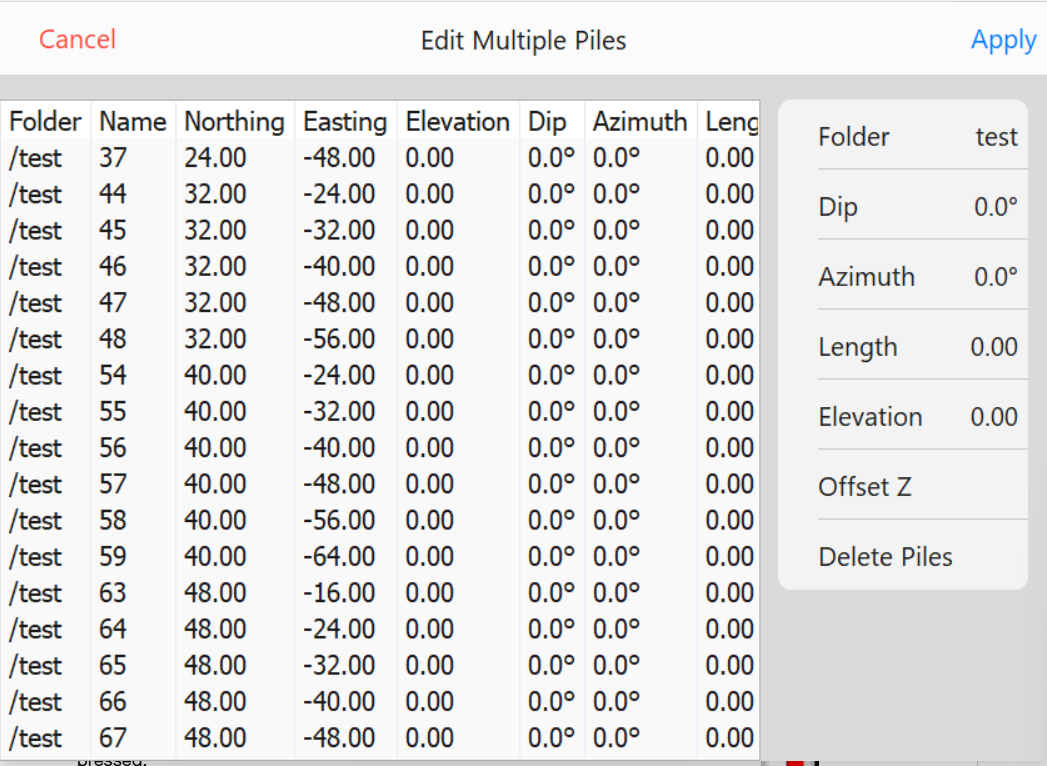
Press the buttons on the right to change:
Folder: Move piles to a different folder.
Dip: the dip angle.
Azimuth: the direction.
Length: the drive distance.
Elevation: the top-of-pile elevation.
Offset Z: offsets all elevations by the entered amount.