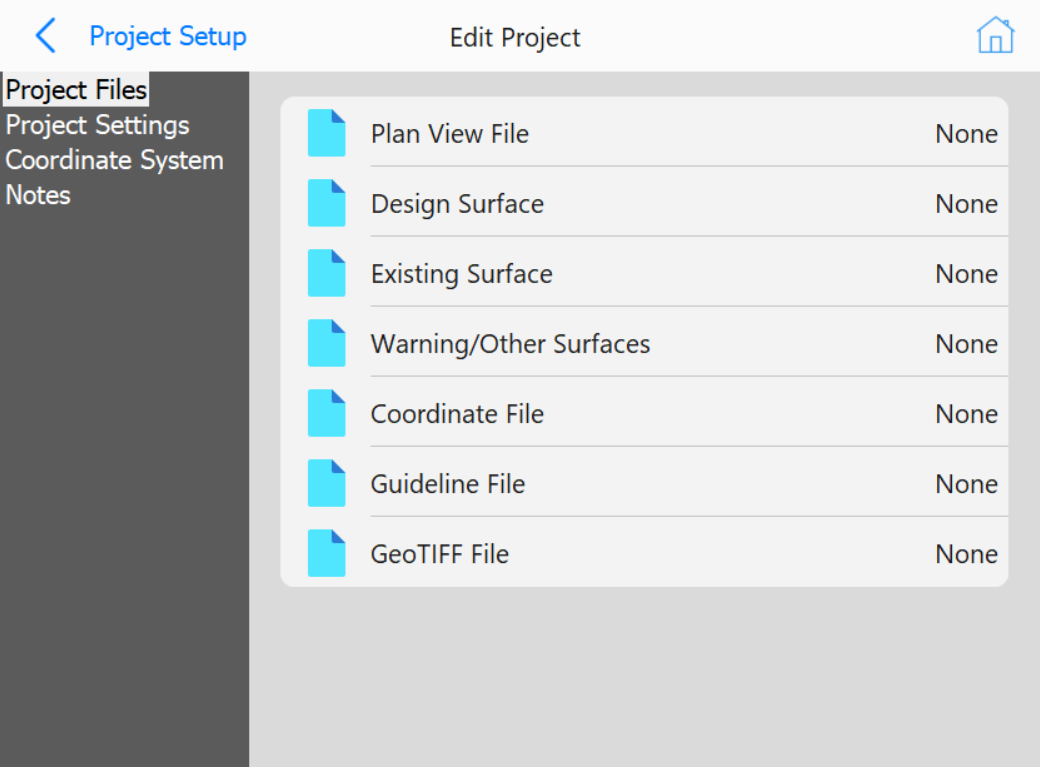
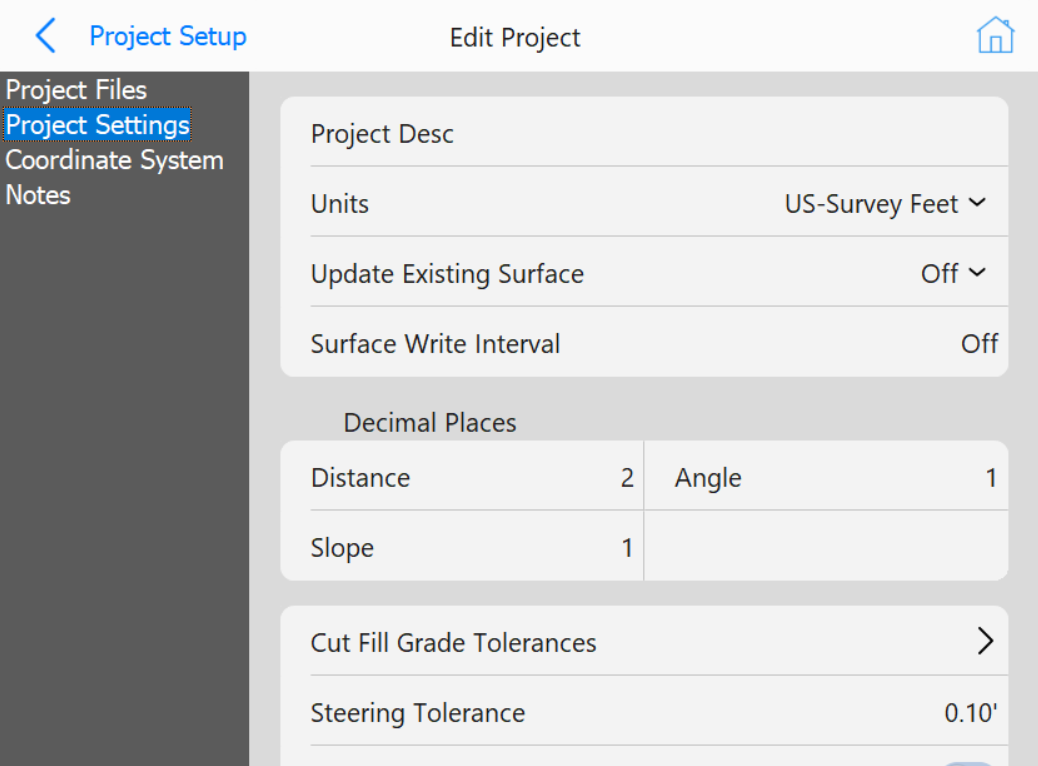
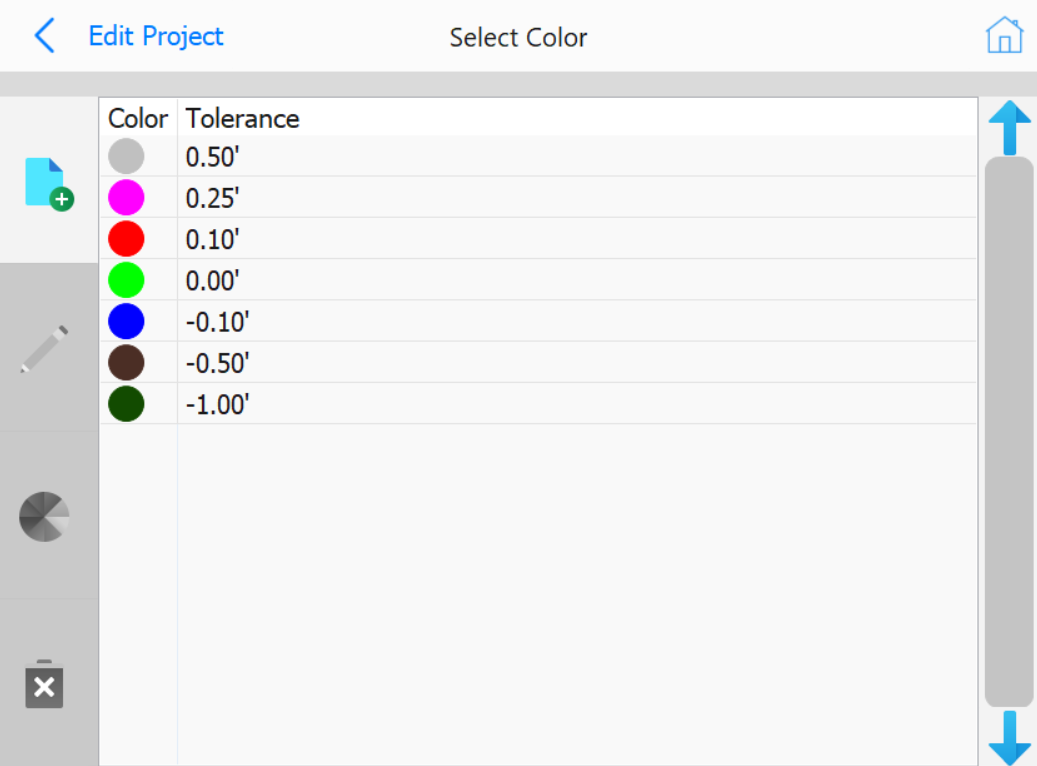
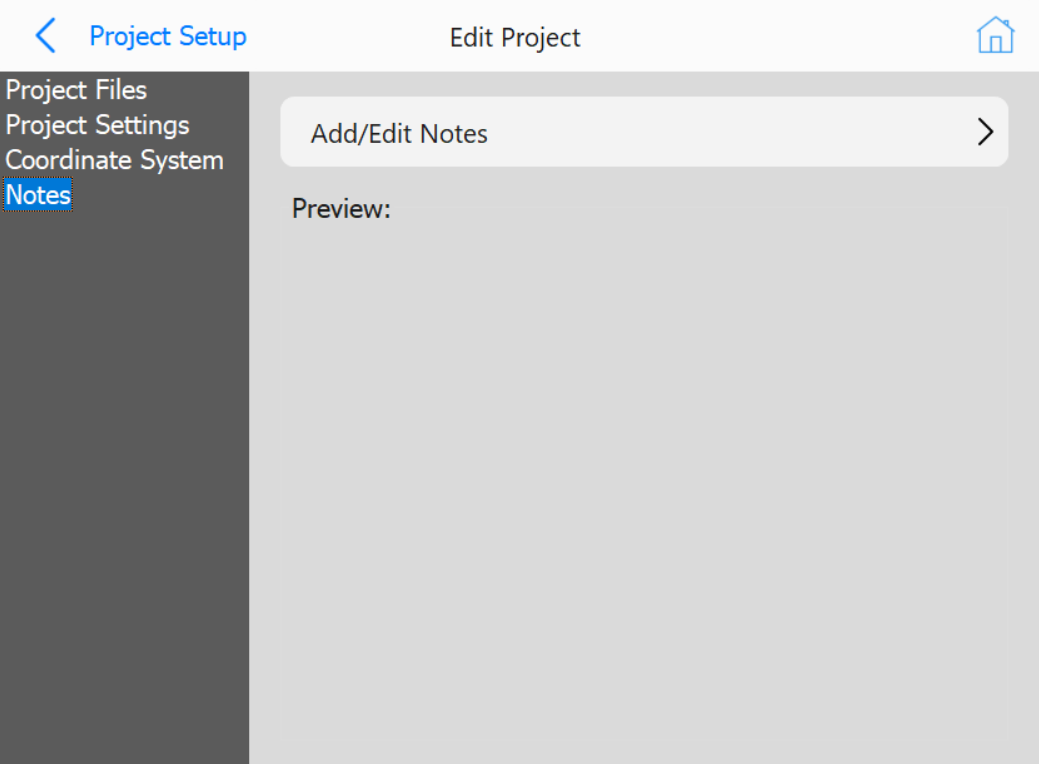
The Edit Project page separates project setup into four different sections: Project Files,
Project Settings, Coordinate System, and Notes
Project Files
Project Files tab
Buttons
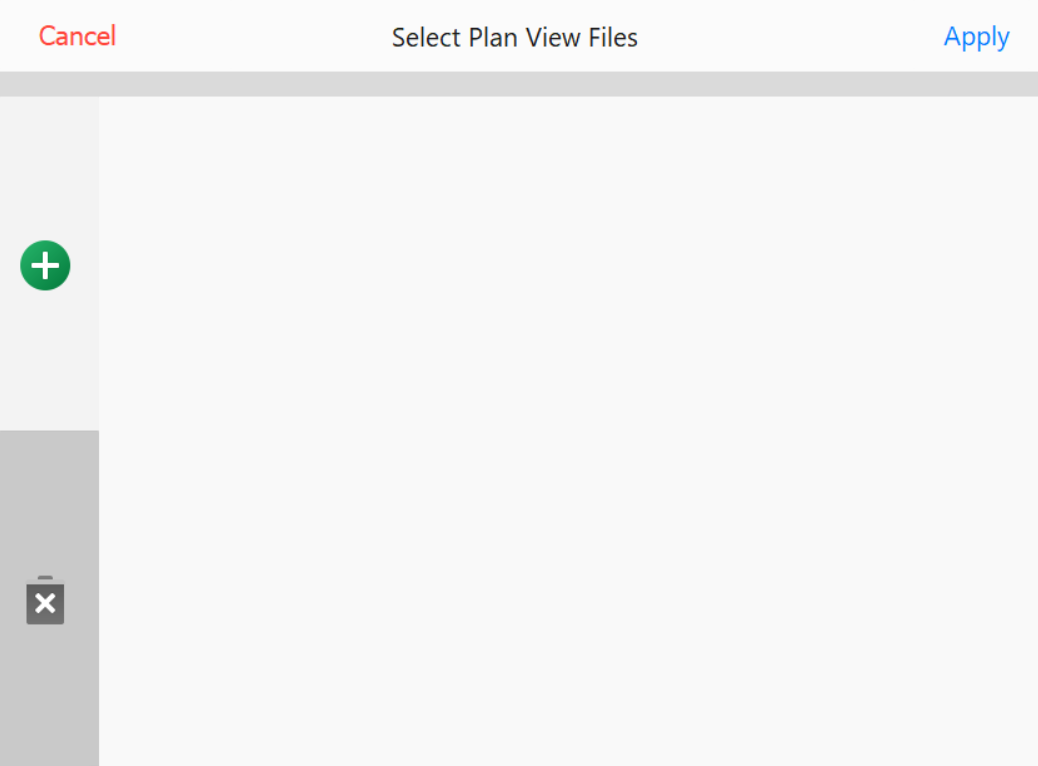
Plan View File: Opens the following page to select a file.
Clicking the add button will allow selection of a .dxf or .dwg file from the Data directory
Files can also be deleted from the project with the delete button
Offset Increment: Opens a numpad to enter a value for offset increment
Vertical Offset: Opens a numpad to enter a value for vertical offset
Lift Vertical Offset: Opens a numpad to enter a value for lift vertical offset
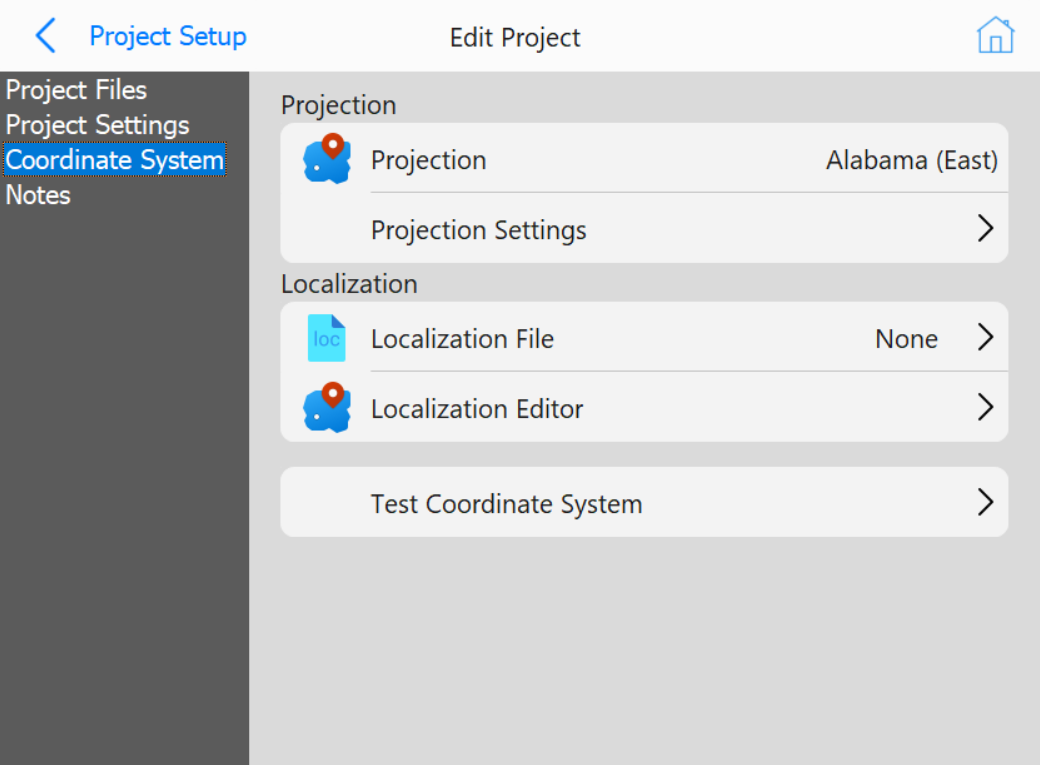
Coordinate System
Coordinate System tab
Buttons
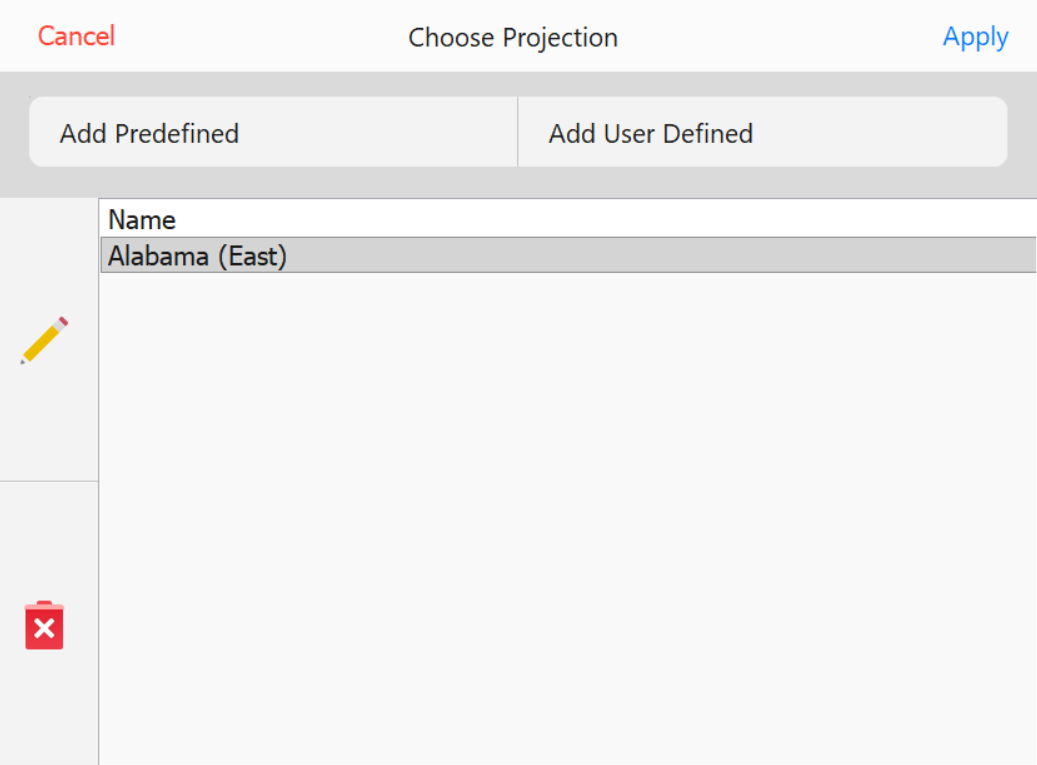
Projection: Opens the following menu to add, edit, or delete predefined or user defined projections
Choose Projection page
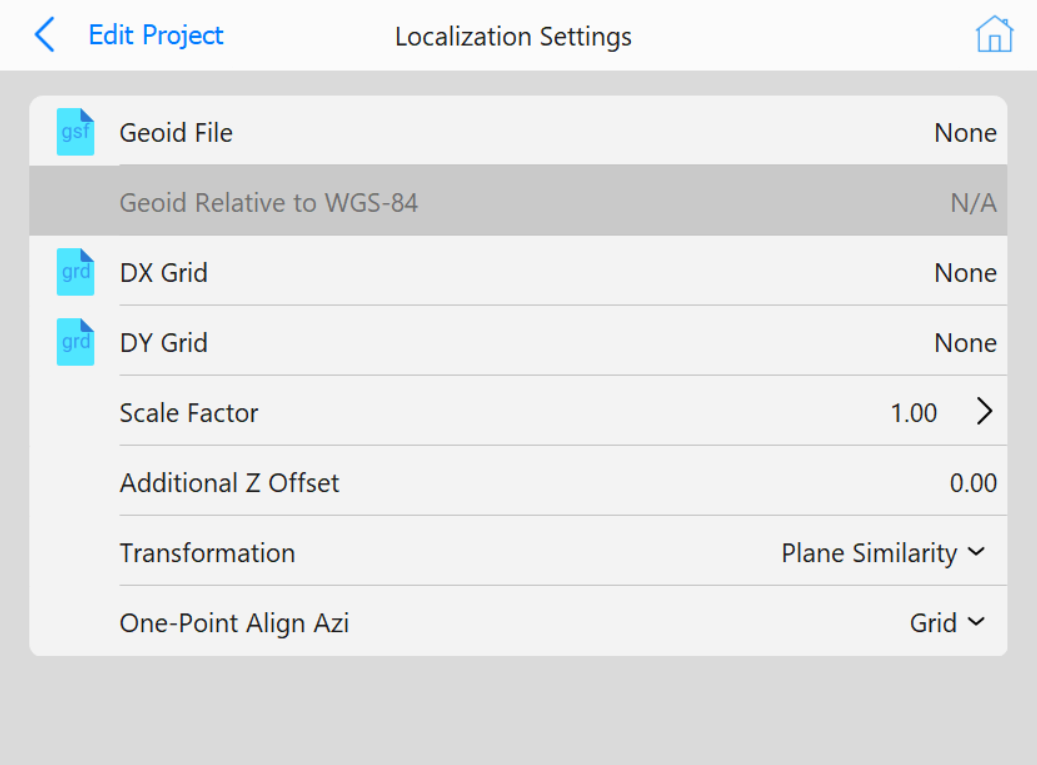
Projection Settings: Opens the Projection Settings page to alter additional parameters
Projection Settings page
Localization File: Opens the file explorer to select a localization file
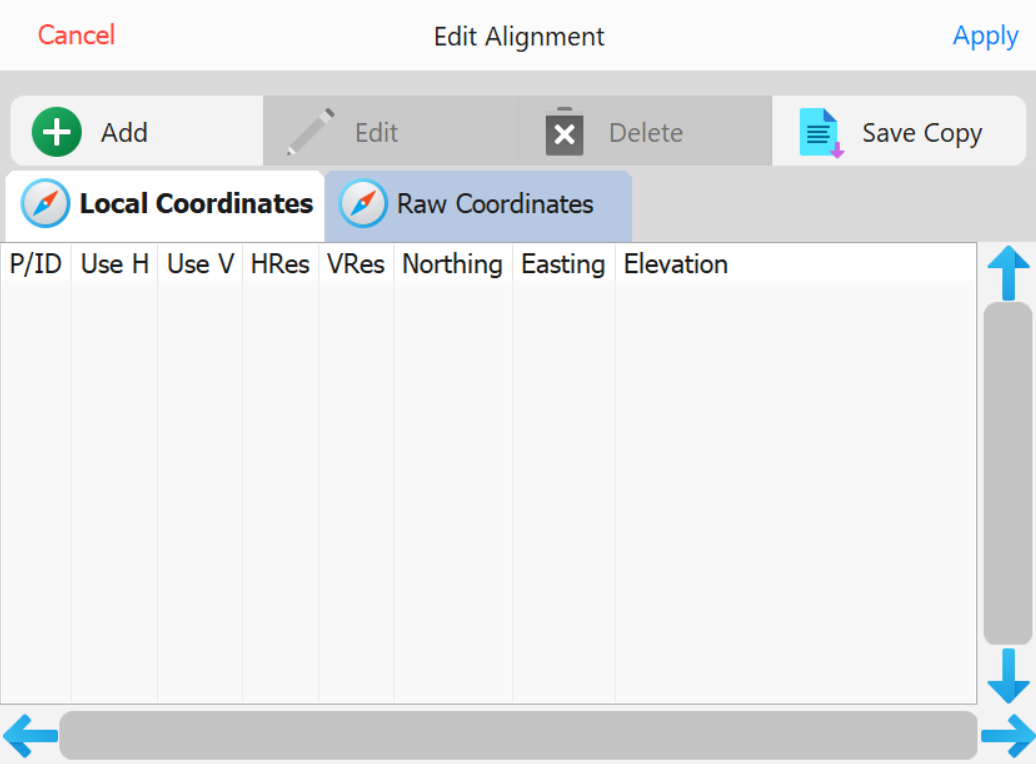
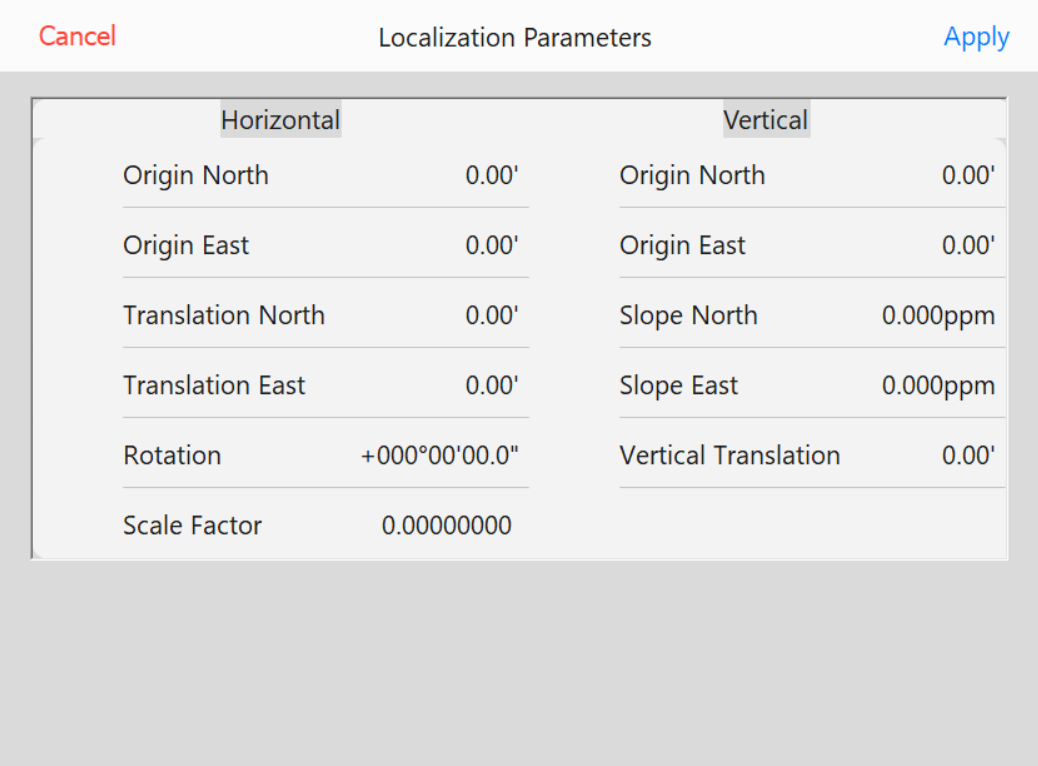
Localization Editor: Prompts the user on if they would like to enter the localization
from points or parameters, and opens one of the following pages
Edit Localization from PointsEdit Localization from Parameters
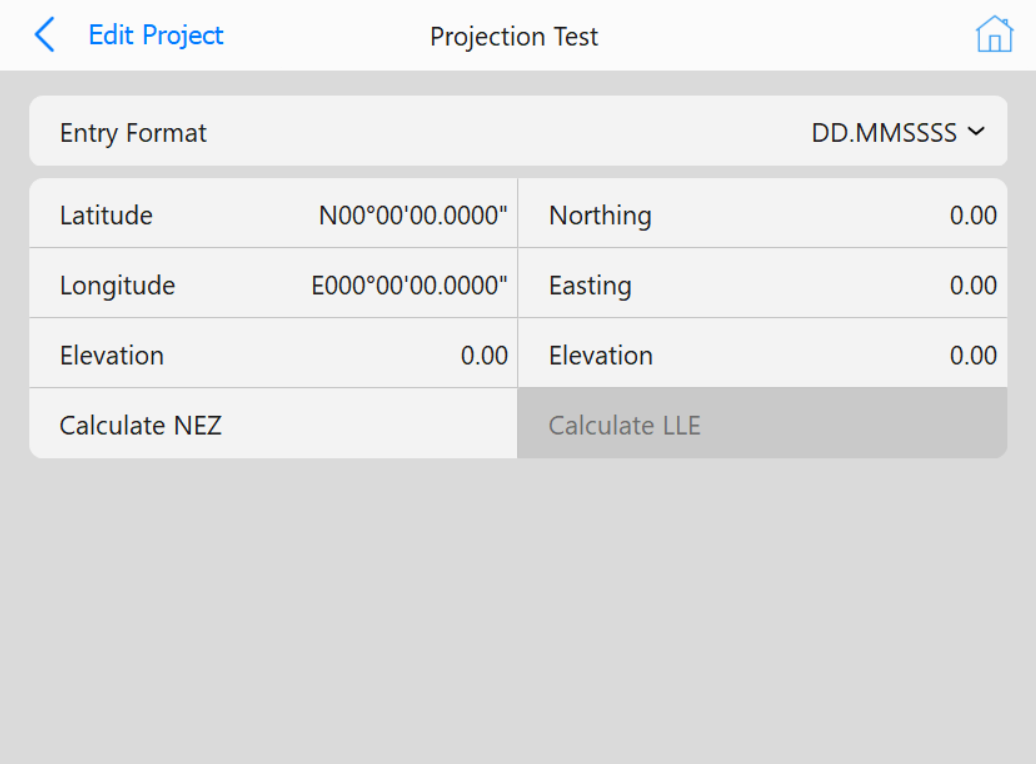
Test Coordinate System: Opens the following menu to enter points and test the projection
Test Projection page
Notes
Notes tab
Buttons
Add/Edit Notes: Opens a keyboard to enter project notes. Notes are limited to 8 lines of 40
characters per line