Machine Files
Select the Fleets or Machines to send the file to. The Fleets and Machines are organized in the tree structure established in the Fleet Management → Fleets/Machines menu of Command.
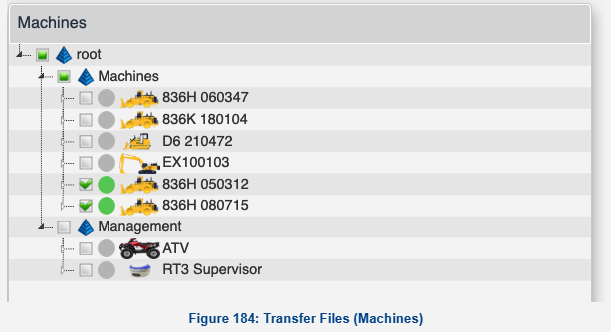
- A selected machine will have a green check box indicating that it has been selected to receive the file. Multiple machines and or fleets can be selected to receive files. A green check at the fleet level indicates that all machines in that fleet are selected. A green box indicates that some machines or fleets below it are selected.
- If a rover has a red dot icon the machine is currently offline and will not receive the transferred files until it comes back online. Sending files to offline machines is allowed. Command will send the files once the machine is online.
- If a rover has a green dot icon, the machine is currently online and ready to receive files.
 After selecting the file and machines to receive files, click the "Send" button to begin the file transfer.
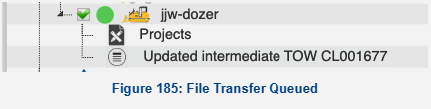
The files are now queued to send. Leaving this page will not interrupt the file transfer. View the progress of the current file transfer right here or from the Command Map page in the Transfer Queue window. Expanding the Machine's tree will show the projects on that machine and the current status of the files transfer(s) being sent.
To delete a single project, right click a project on a machine to open a context-menu. Select "Delete."
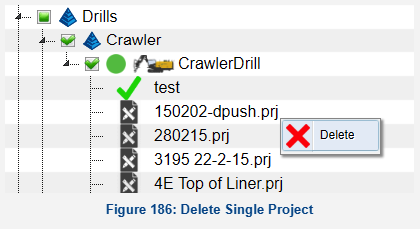
 To remove a project from multiple machines or fleets, use the Remove File, "X" button.
Select the machines, then click the Remove button. A status bar will appear indicating the current status of the project removal. Leave the page, once the transfer process has started, this will not interrupt the transfer. The status of the transfer will also appear in the Transfer Queue accessible from the Surface Map page.