Select Files
Files on the left are arranged in a tree menu. Clicking a file or category makes the check box with a green check. A green box will appear in the top level of the tree indicating that some items in that branch are selected.
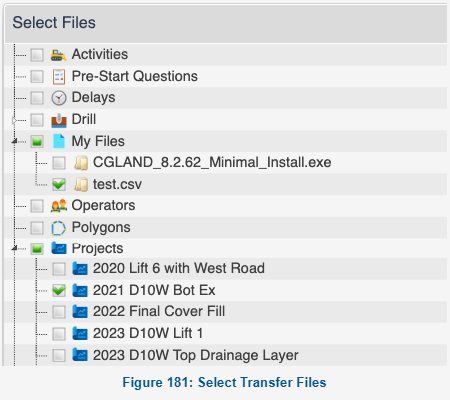
Select Transfer Files
- Activities: Select this to send out all configured activities codes to selected machines. Activities are configured in Tools → Fleet Management → Operational Codes.
- Delays: Select this to send out all configured delay codes to selected machines. Delays are configured in Tools → Fleet Management → Operational Codes.
- Down Codes: Select this to send out all configured down codes to selected machines. Down Codes are configured in Tools → Fleet Management → Operational Codes.
- My Files: To upload custom files, right click the My Files item to access the context menu. Select "Upload File" and browse to the file on the local PC.
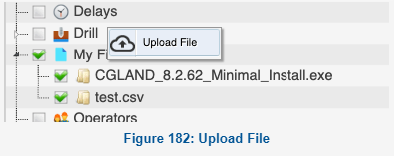 Upload File
- Operators: Select this to send out the Operator login list. The Operator login list is configured in Tools → Fleet Management → Operational Codes.
- Polygons: Send polygon events to machines. Polygon events are configured in Command → Design → Polygon Events.
- Projects: Expand this menu to access all of the Grade Project configured for this site (Tools → Grade Projects). Select the project(s) to transfer to the machine.
- Note: Project transfers have the option of being made the current project on the machines or just being sent and loaded manually by the operator at a later time.
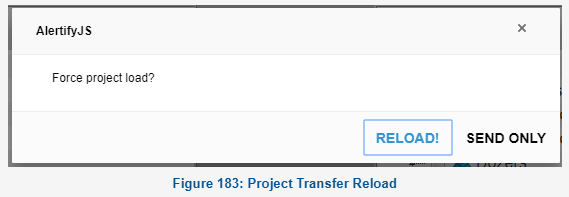 Project Transfer Reload
- Send only: Transfer the project to the machine. This makes the project available for selection by the operator.
- Reload: This will load the project when the transfer is complete.
- Slopes: (need more here).
- Grade Updates: The latest patch updates for Carlson Grade. Send the matching patch for the machine type. The patch will be applied on the next restart of Carlson Grade. (Requires v8.4 or higher).