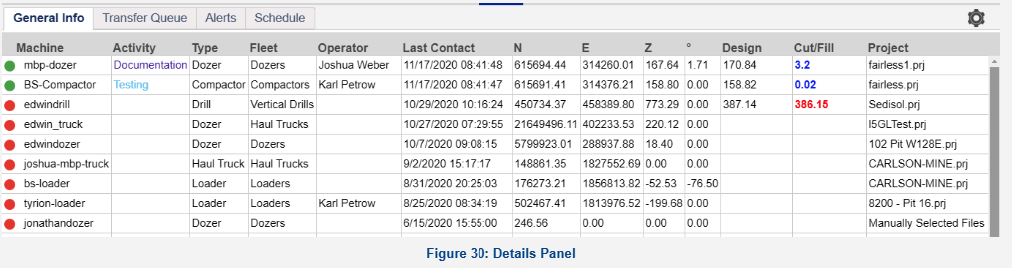
Any data from a report run on the Surface Map Page appears here. Adjust the height of the Details pane by click-dragging the edge, and hide and show by clicking the blue button on the top center of the edge. It is separated into four tabs:
General Info: The General Info tab has all of the details of the current status of the machine. The list can be sorted by column by clicking on the column name.
- Machine: The name of the rover or machine.
- Activity: The activity entered into Grade, if applicable.
- Type: Vehicle type, such as Dozer, Excavator, Compactor, etc.
- Fleet: the Fleet to which the machine is assigned.
- Operator: The operator logged into the machine, if applicable.
- Last Contact: The time of the last position sent from the rover.
- N: Northing.
- E: Easting.
- Z: Elevation.
- °: Azimuth (direction of travel).
- Design: The elevation of the design at the current position of the machine.
- Cut/Fill: Distance in elevation to the design at the current position of the machine.
- Project: The Grade Project currently loaded on the machine.
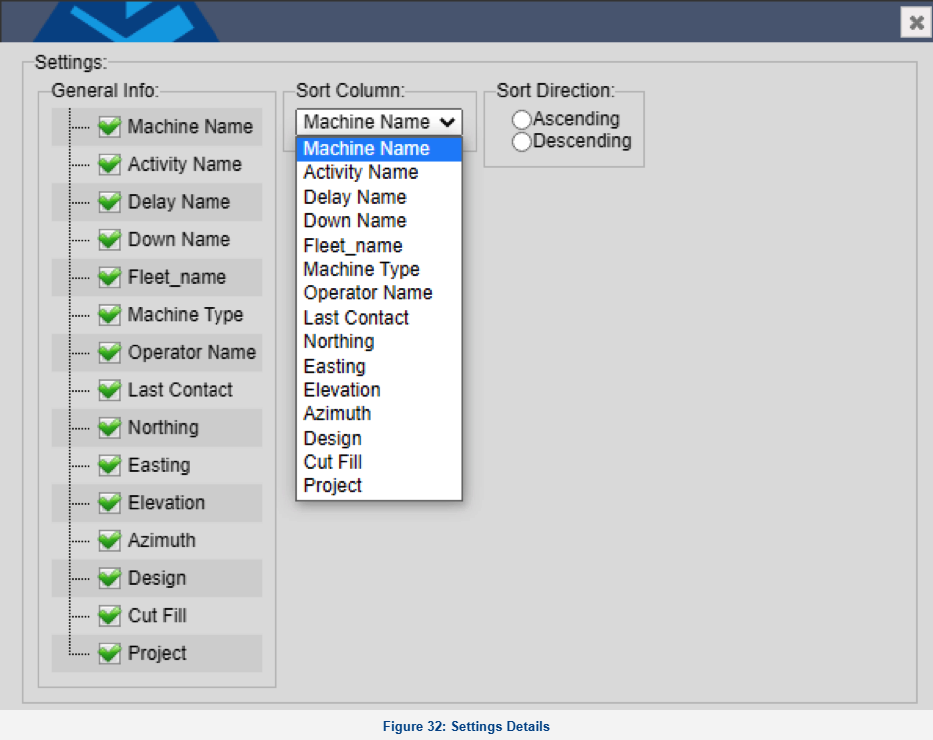
 Press the Settings button in the upper right corner to open a menu for the details panel. Toggle the visible columns under "General Info." Change the default sort column and the default sort direction.