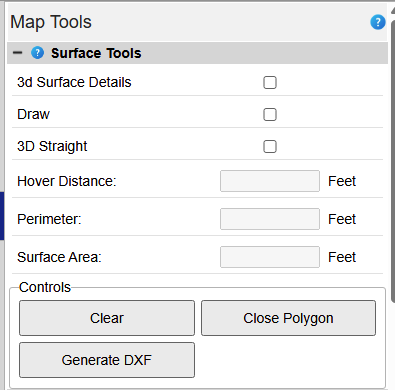
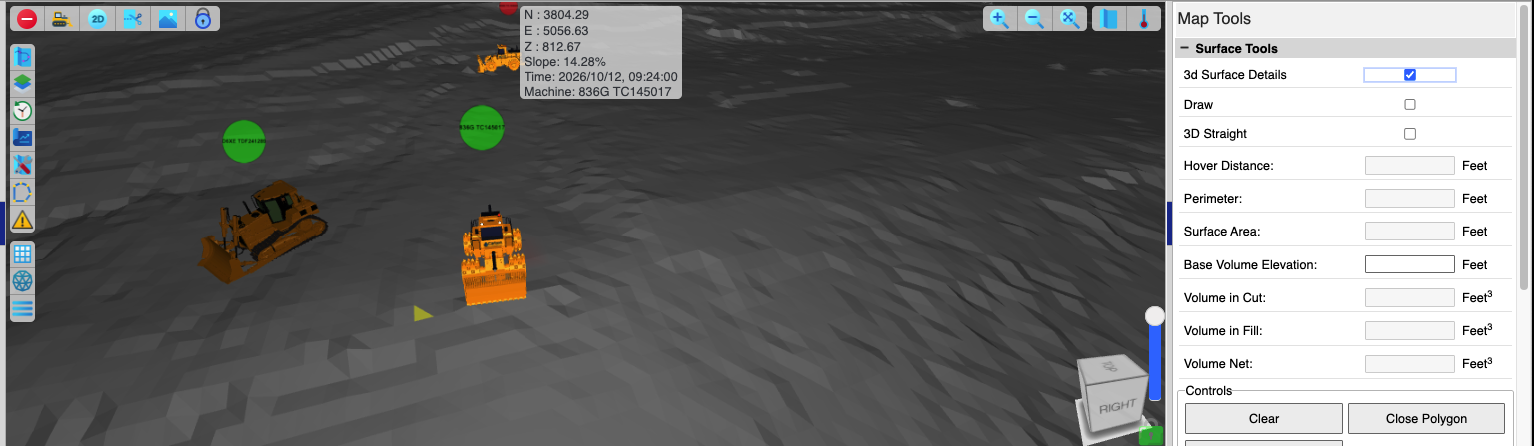
- 3D Surface Details: Review the information in the top pane (if no data is available, this area will remain blank). Locate the active node, which is highlighted in yellow (indicated by the yellow triangle).
- Steps:
- Load the surface -- Command->Surfaces->Display: Live Surfaces->Current->Select Surface->Apply
- Switch to 3D
- Switch to Map Tools -- Command -> Map Tools
- Activate 3D Surface Details check box
- Hover over 3D surface
- The Top Panel shows:
- Slope of the surface node
- Time: the timestamp of the last time this node was updated
- Machine: the machine that last updated it.
- Draw: Enable this checkbox to enable the polygon drawing feature. Click locations across the map to place points. Hover over the map to view real-time distance measurements inside the Hover Distance field.
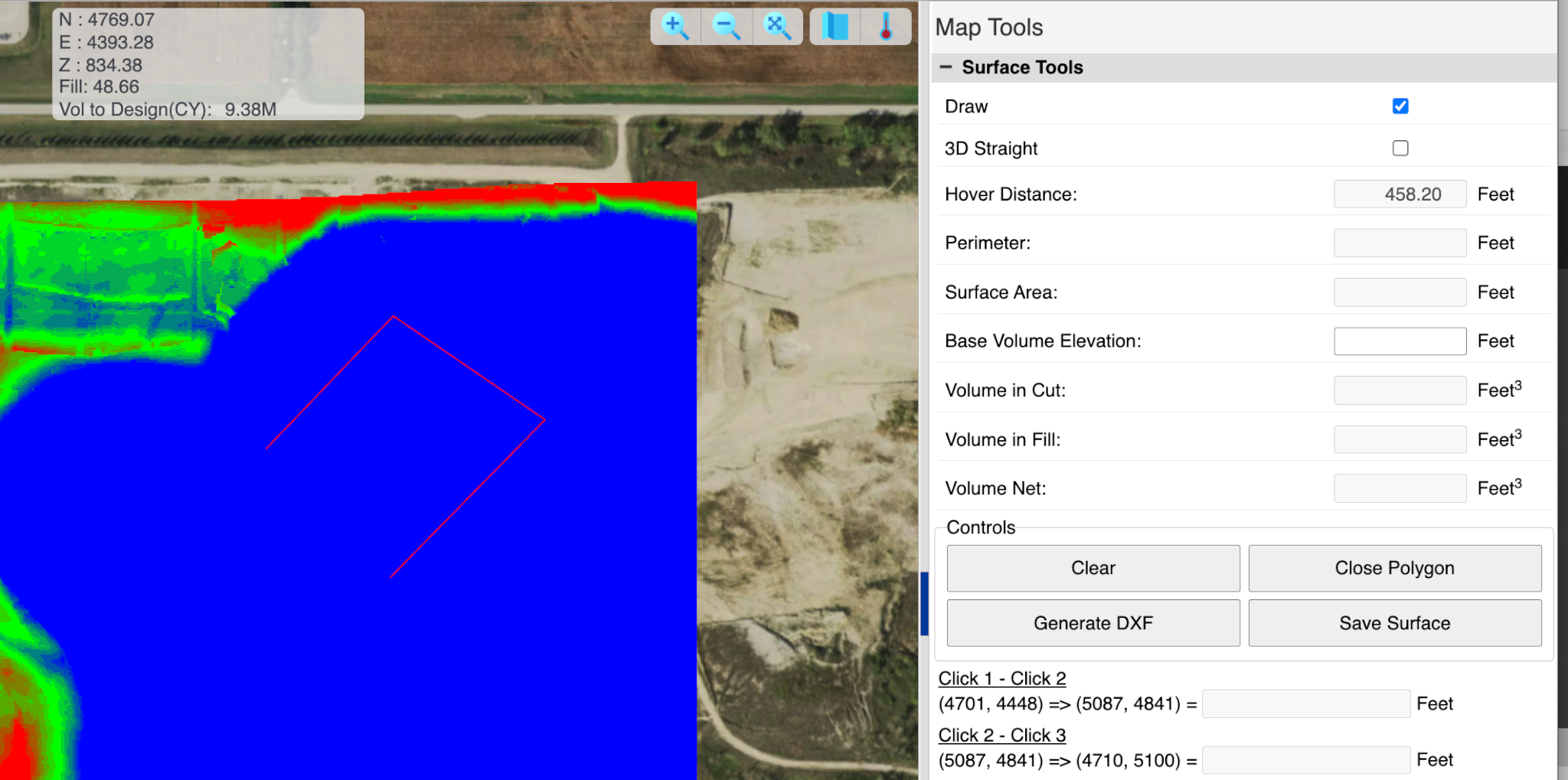
Draw Hover
- 3D Straight: When active in 3D mode, measurements are calculated direct point-to-point in a straight line. When disabled, distance is measured along the contours of the surface.
- Hover Distance: Displays the distance from the last selected point to the current cursor position.
- Perimeter: Indicates the total boundary length surrounding the drawn polygon.
- Surface Area: Displays the total surface area enclosed within a closed polygon.
- Base Volume Elevation: Enter a reference value corresponding to the baseline or lowest elevation point.
- Volume in Cut: Calculates the total volume of cut required.
- Volume in Fill: Calculates the total volume of fill required.
- Volume Net: Represents the net difference between cut and fill volumes.
Controls
- Clear: Removes all active points and measurements.
- Close Polygon: Automatically draws a segment connecting the final point back to the starting point.
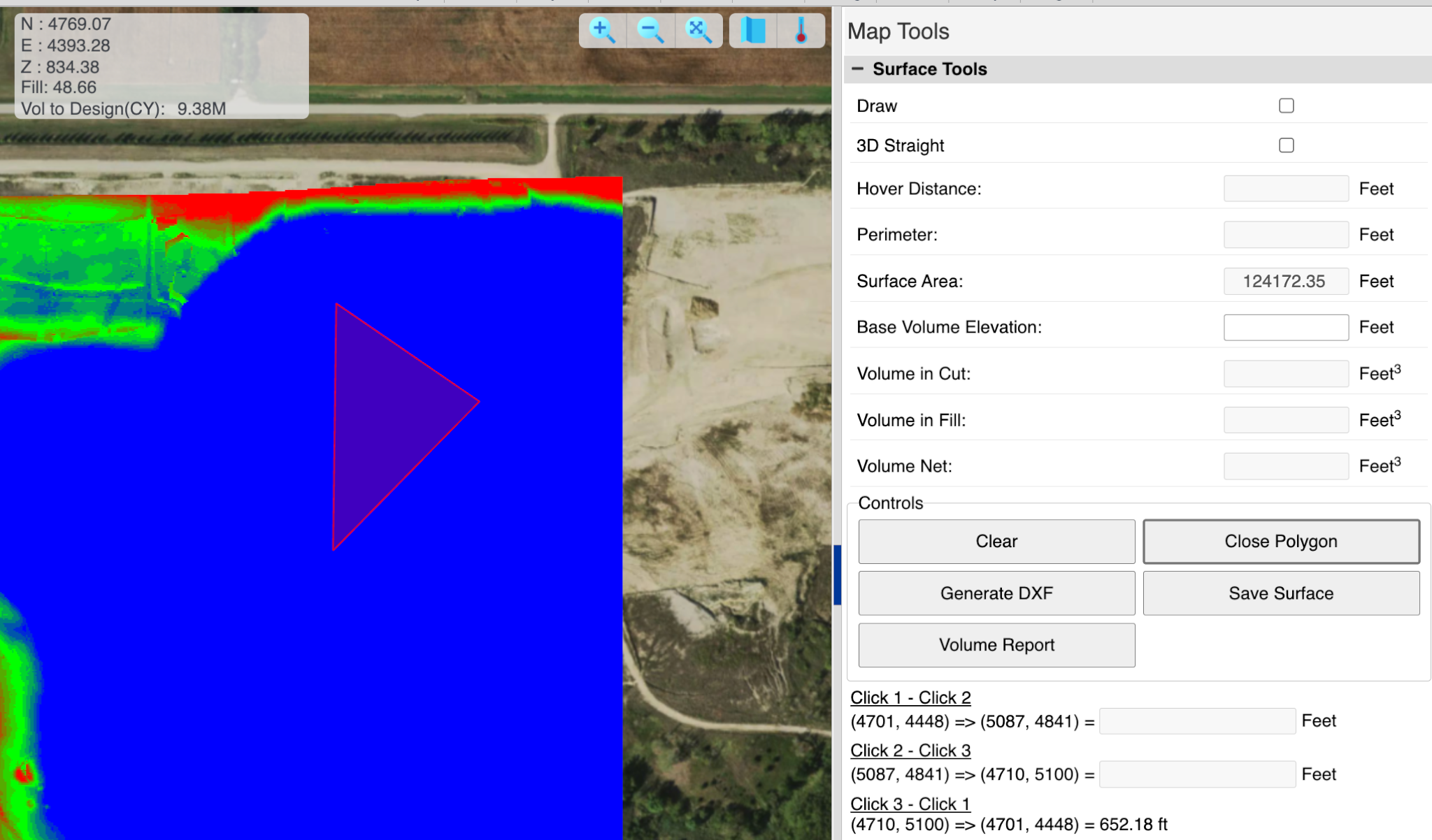
Close Polygon
- Generate DXF: Exports and downloads a CAD-compatible DXF file representing the 2D polyline measurement.
- Save Surface: Exports the current surface to a .GRD file format.
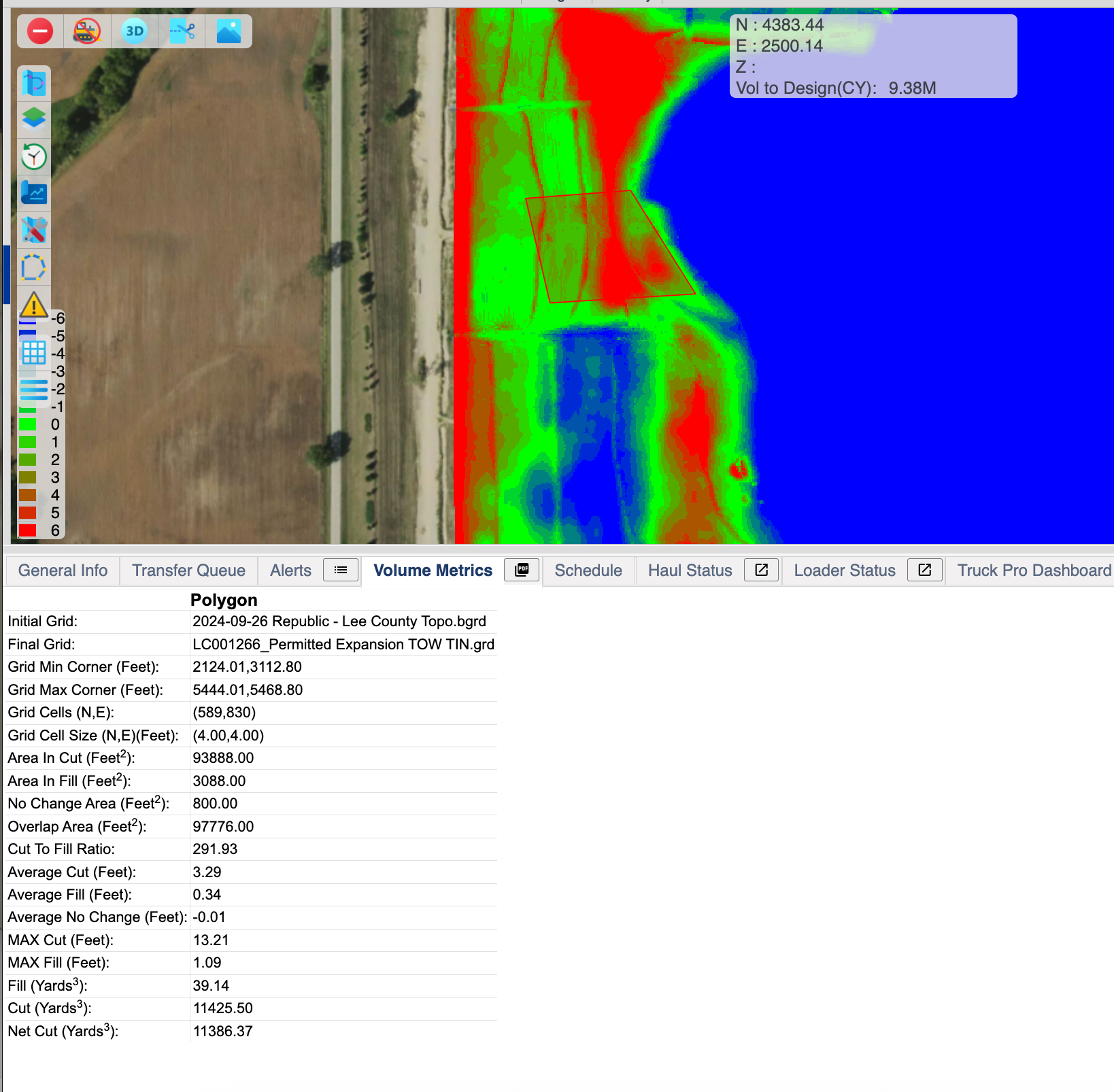
- Volume Report: Becomes available after closing a polygon on a loaded Cut/Fill surface. Click this option to generate a detailed summary panel at the bottom, comparing top and bottom surface volumes within the selected area.