Customer guide | Review surface slopes, compare areas, and share results.
Use the Surface Slope Report to see where slopes fall within your chosen ranges. Review design, current, and initial surfaces, then download a PDF of the checked reports.
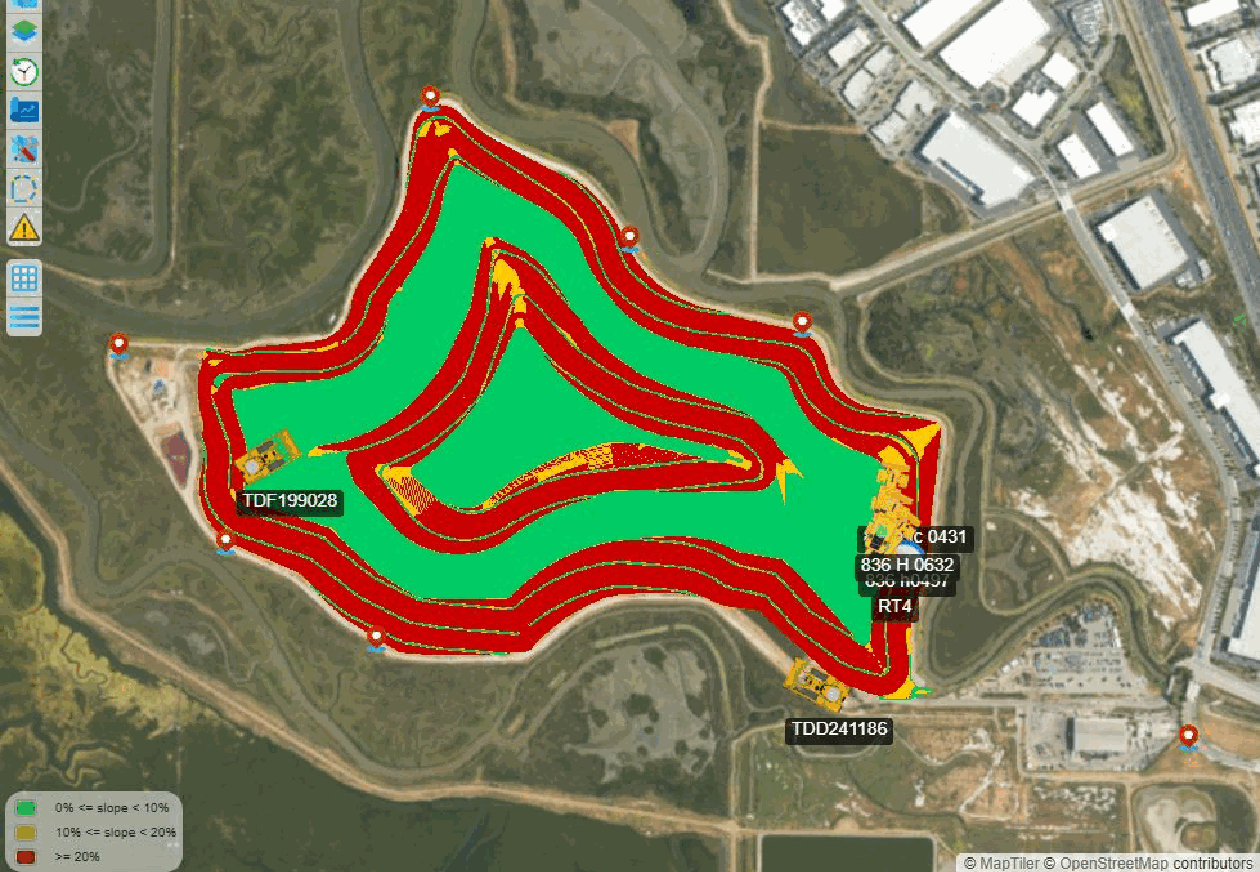
Figure 1. A design surface displayed with the default green, yellow, and red slope ranges. Screenshots show an example site; your surfaces and results will differ.
Get started
In the map view, choose Reporting > Slope Report. Expand Surfaces and check a surface to create its report. Open Slope Colors (%) to choose the ranges you want to review.
The report shows minimum, average, and maximum slope, plus the area and percentage in each range. Surfaces from the current site can also be displayed on the map.
Choose surfaces and colors
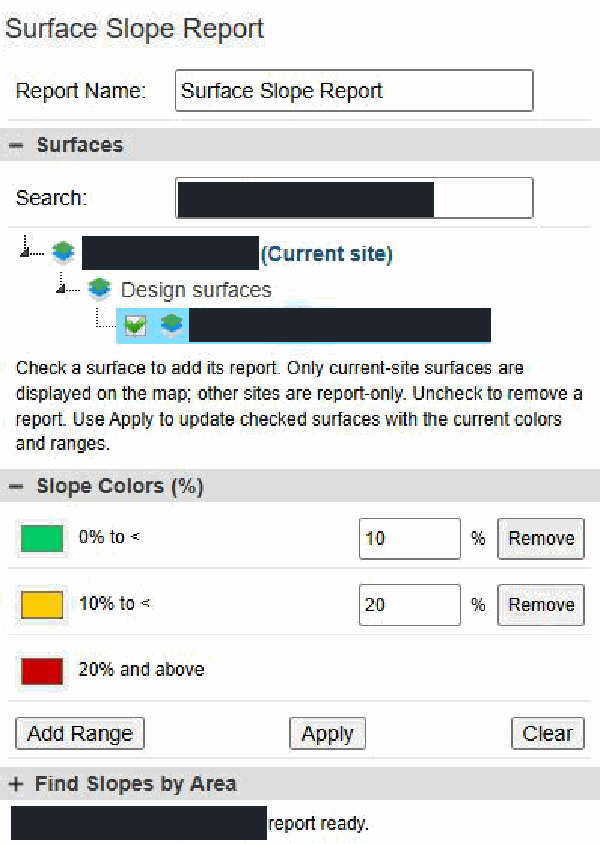
Figure 2. Surface selection and slope color controls.
1. Find a surface
Expand Surfaces. Browse a site or use Search to filter site names and surfaces that have already been loaded.
2. Check the surface
A report is added to the Surface Slope Reports tab. Check additional surfaces to compare them. Uncheck a surface to remove its report.
3. Set the ranges
Expand Slope Colors (%). Select a color and edit each upper limit. Limits must be positive and increase from one range to the next.
4. Apply changes
Select Apply to update all checked reports. Your last valid ranges and colors are remembered in this browser.
Working with ranges
The default ranges are 0% to less than 10% (green), 10% to less than 20% (yellow), and 20% and above (red). For example, a slope at the 10% limit belongs to the second range.
Use Add Range or Remove to change the number of ranges. You can use up to 20. The last range always includes all slopes at or above its lower limit.
Clear removes the slope report and slope search results. When a saved surface display is available, it is reloaded.
Read the report
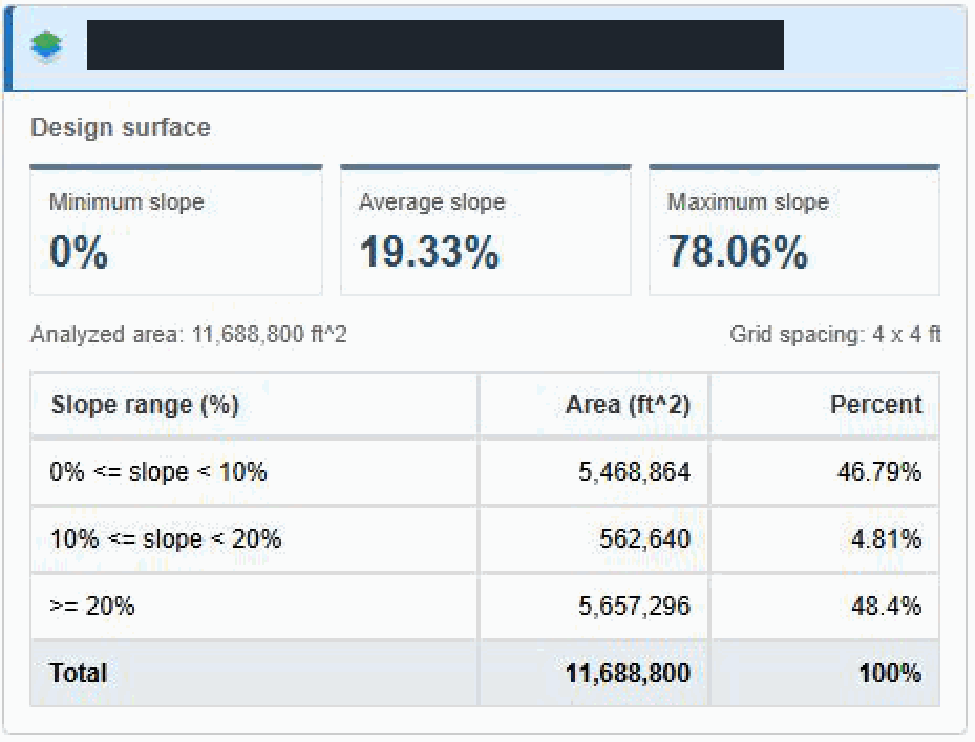
Figure 3. A completed surface report with slope metrics, analyzed area, grid spacing, and the area breakdown.
What the values mean
Minimum / Average / Maximum slope: the lowest, average, and highest slope among the analyzed locations. Slope is shown as a percentage: rise divided by horizontal run, multiplied by 100. A 10% slope rises 1 unit over 10 horizontal units.
Analyzed area: the horizontal area represented by locations with enough elevation information to calculate slope. Outer grid edges and locations with missing neighboring elevations are excluded.
Grid spacing: the distance between elevation samples. Area is the horizontal area in a slope range; Percent is that range's share of the analyzed area. Displayed percentages may vary slightly from 100% in total because of rounding.
Show a report on the map
Select a current-site report heading to display its colored surface. The highlighted heading identifies the selected report. Surfaces from other sites are marked Report only. You can also review the selected surface in the 3D view.
Find slopes by area
Use Find Slopes by Area to find surfaces across selected sites that contain enough area within a slope range.
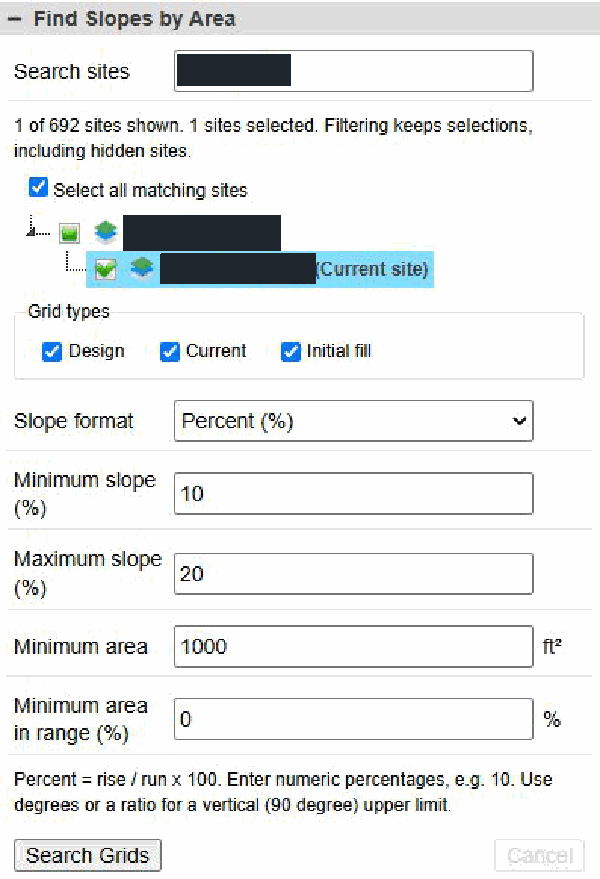
Figure 4. Area search controls, filtered to one example site.
1. Select sites and grid types
Choose the sites to search and include Design, Current, and/or Initial fill surfaces.
2. Enter the slope range
Choose Percent, Degrees, H:V, or V:H. The minimum is included and the maximum is excluded.
3. Set the area criteria
Enter the minimum matching area and, optionally, a minimum percentage. Use 0% for no percentage restriction.
4. Run the search
Select Search Grids. Review matches in the Slope Search tab and use its PDF icon to download the results.
How matching works
Matching area must be greater than the minimum area entered. The percentage must be at least the entered percentage. Matching locations are added across the whole surface; they do not have to form one continuous area.
The search percentage uses the total area with elevation data, including grid edges. It can differ from the percentage in a surface report, which uses only locations with a valid slope calculation.
Download and helpful tips
Download your surface reports
1. Check each surface you want to include and wait for every report to finish.
2. Enter a Report Name for the downloaded file.
3. Select the PDF icon beside the Surface Slope Reports tab. The download includes the checked reports, their colored surface images, slope metrics, and area tables.

Figure 5. The PDF download icon is beside the Surface Slope Reports tab title.
If something needs attention
A surface will not load
Close and reopen the site branch. If a checked report fails, uncheck the surface and check it again.
No usable slope results
Choose another surface or ask your site administrator to check the elevation data. A surface needs enough valid neighboring elevations.
Colors have not changed
Select Apply after editing ranges or colors.
A surface does not appear on the map
Only current-site surfaces display on the map. Select the report heading to display a current-site surface.
The PDF cannot be downloaded
Wait for all checked reports to finish. Uncheck any failed reports and try the PDF icon again.
Compare results consistently
Area represents horizontal ground area, not the area measured along the sloping surface. When comparing different sites, confirm that their distance and area units are consistent. Filtering the site list in area search keeps previously selected sites, including hidden selections.