Display Options
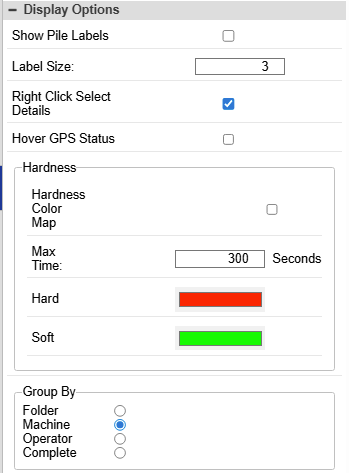
Additional settings for viewing pile reports.
- Show pile labels - Display pile “name” labels next to the piles plotted in the map.
- Label Size - Set the size of the pile labels. This setting is dependent on the coordinate system of the site and will take experimentation to make right.
- Right Click Select Details - Toggle right-click multi-select of reported piles in the map. Right-click normally allows “zoom window.”
- Hover GPS Status -
Hardness
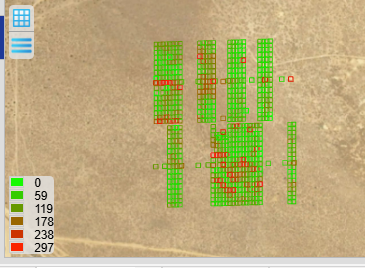
- Hardness Color Map - Color the piles based on drive time in seconds. This map plots the piles on the map as a gradation between the 2 colors.
- Max Time - The max number of seconds of drive time to drive the pile. This will be the value of the hardes color.
- Hard (default: red) - The color of the piles that took longer to drive
- Soft (default: green) - The color of the piles that took less time to drive
Group By
This is the grouping of the production data in the “Pile Reporting” tab of the report.

- Folder - Group the production date per folder.
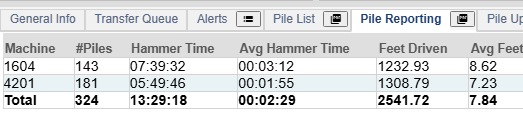
- Machine (default) - Group the production date per machine that performed the action.
- Operator - Group the production date per operator.
- Complete - Group by folder, operator, machine
Map Pile Symbols
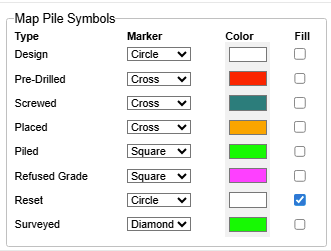
Give each state of the piles a symbol for the map to distinguish it from the other states.
- Design - Undriven piles
- Pre-Drilled - Piles designs that have been pre-drilled by a crawler drill/
- Placed - Pile designs where the pile has been dropped by a placement machine at the design location.
- Piled - Piled by a pile driver.
- Refused Grade - Marked by Carlson PD Grade as refused based on time or rate of penetration.
- Reset - Marked as reset by Carlson PD Grade.
- Surveyed - Surveyed by Carlson PD Grade Supervisor